This page provides an overview on the functionalities and options available for KA120 - Erasmus accreditation in the fields of Vocational education and training, School education and Adult education in Beneficiary module. 

Erasmus accreditation is a tool for organisations in vocational education and training (VET), school education and adult education that want to open up to cross-border exchange and cooperation. Award of the Erasmus accreditation confirms that the applicant has set up a plan to implement high quality mobility activities as part of a wider effort to develop their organisation. This plan is called an Erasmus Plan and it is a key part of the application for Erasmus accreditation. 

Source: Erasmus+ Programme Guide 2024 (Version 1, 28.11.23); page 78

For a quick overview of navigation and basic functionalities in Beneficiary module, please view the eLearning video.


Prerequisites

  • When an accreditation is accredited, it will become available in Beneficiary module 
  • An email notification is sent to the contact persons of the accredited organisation, informing them of the availability of the accreditation in Beneficiary module. See Notifications to project contacts.


Access KA120 Erasmus Accreditation

Once an accreditation becomes available in Beneficiary module, it can be opened by clicking on the View icon in the list of granted projects.

For information regarding the options and functionalities of the project list, please see Project list. 
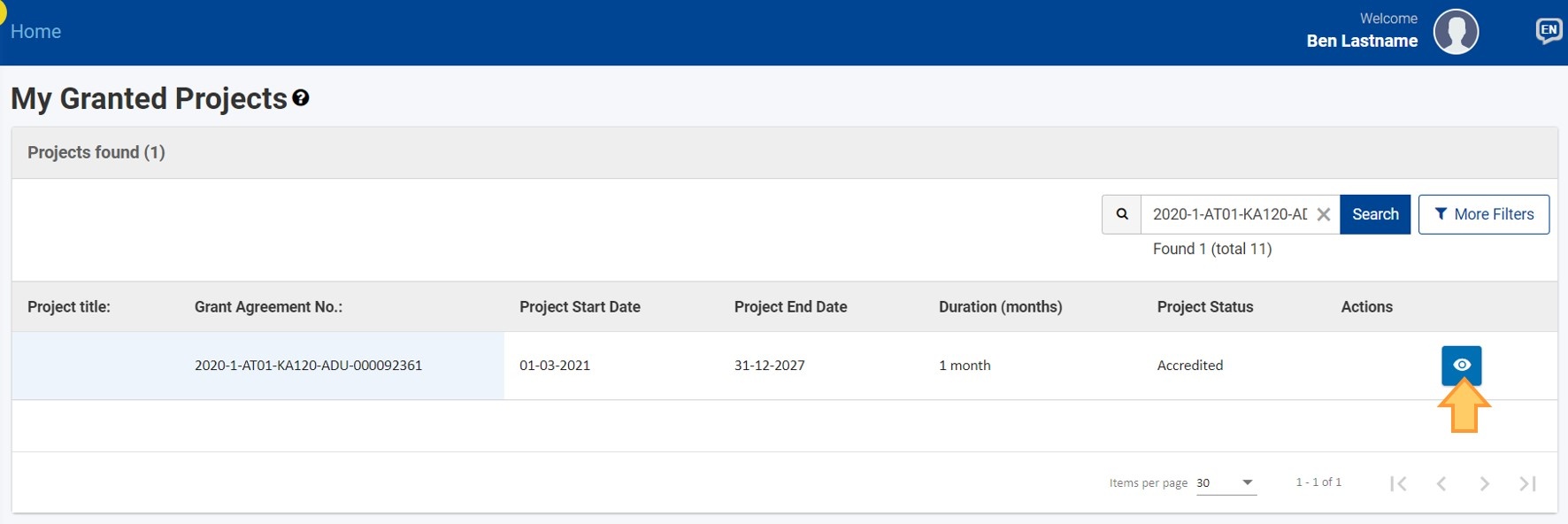
Open the Accreditation from the project list


Accreditation details screen

When opening a KA120 accreditation, the Accreditation details screen opens, consisting of:
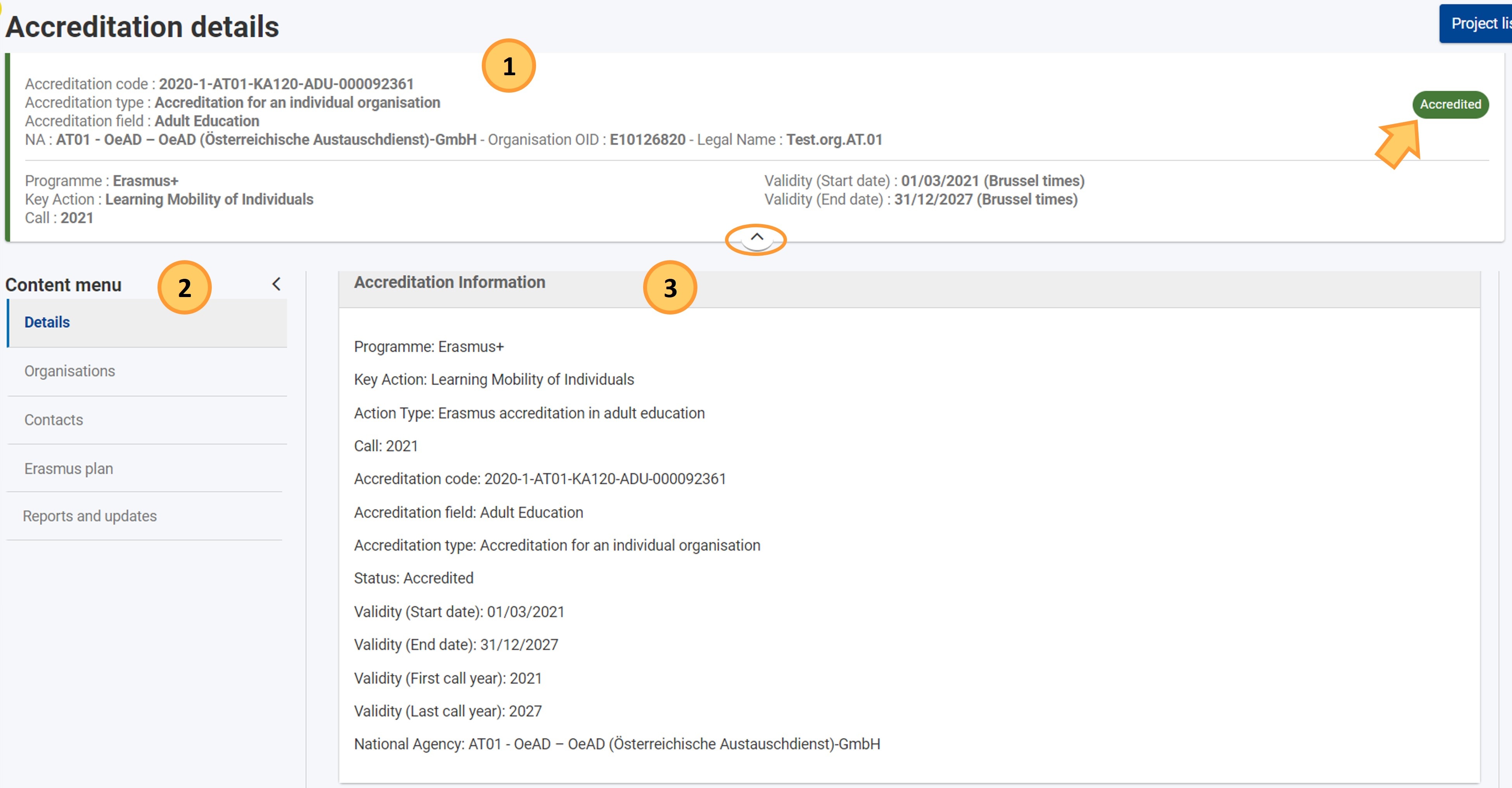
  1. Expandable header - providing general information on the accreditation, including a status badge
  2. Content menu - allows you to navigate to the various accreditation sections, such as Details, Organisations, Contacts and Erasmus Plan
  3. Work area - displays information as per option selected in the content menu


Accreditation status

Once an accreditation is awarded, it will be available in the Beneficiary module. 

Accreditations in Beneficiary module can be in one of the following statuses:
  • Accredited - Once an accreditation is awarded, it will be available in the Beneficiary module. The organisation will be considered Accredited and the accreditation will be valid until the end of the programming period until 2027. 

Accreditations may be subject to observations or suspensions in certain circumstances. Detailed information on the validity and remedial measures, such as suspension and observation measures for the different accreditations, is available in the programme guides (Erasmus+/European Solidarity Corps). The observation or suspension period will continue until the National Agency determines that the conditions and quality requirements are once again fulfilled, and that the risk of low performance has been addressed by the accredited organisation.

  • Accredited (under observation) - This status is displayed when an accreditation has been put under observation. 
  • Suspended - This status is displayed when an accreditation has been suspended. The organisation will not be eligible to apply for funding actions where the Erasmus Accreditation is a requirement.

It is also possible for an accreditation to be terminated at any time, such as if the organisation ceases to exist, or by mutual agreement between the National Agency and the accredited organisation. The National Agency may also terminate an accreditation in cases of continued failure to comply with instructions and deadlines, very low performance, or repeated or significant violations of the Program's rules. In such cases, the status of the accreditation will change to Terminated. Please consult the programme guides (Erasmus+/European Solidarity Corps) for additional information.


  • Terminated - indicates that the accreditation has been terminated. The reason for termination will be indicated in the status, for example as Terminated (validity expired), Terminated (inactivity), Terminated (organisation merge), Terminated (organisation shut down), Terminated (exclusion criteria), Terminated (on beneficiary request), or Terminated (on compliance).

Accreditation with status Accredited

Accreditation with status Accredited (under observation)

Accreditation Details

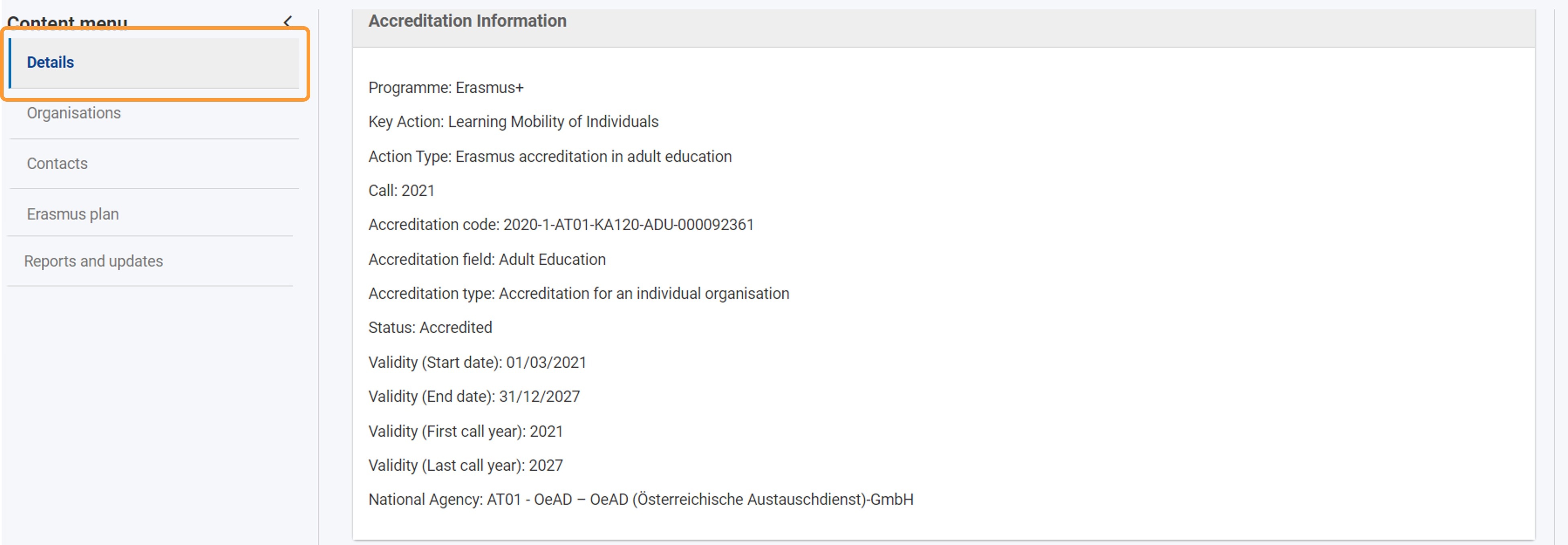
When selecting Details from the content menu, the general information regarding the accreditation is displayed. You find information on the Programme, Key Action, Action type, Call, Accreditation Code, Accreditation field, Accreditation type, Status, Validity start and end date as well as the National Agency and Language of the application. All information is read-only. 


Participating organisations

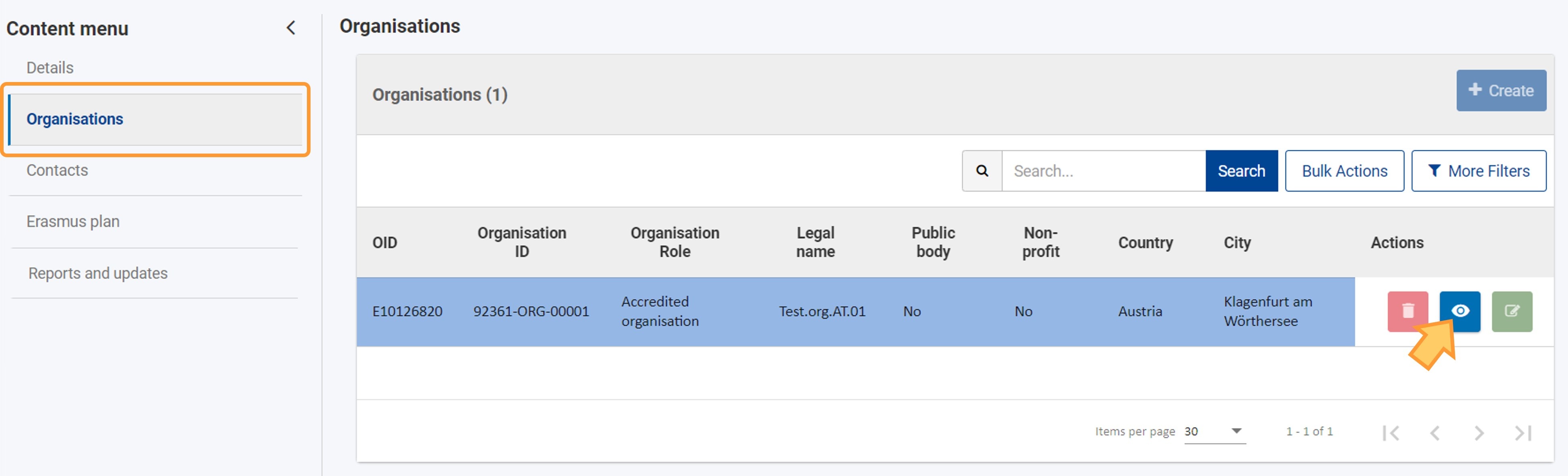
Selecting Participating organisations from the content menu opens the list of Participating organisations for the accreditation. Accredited organisation (1), Consortium member (2) and Other organisation (non-beneficiary) (3) lists and details are displayed in dedicated tables. You only have the option to View the organisation details by clicking on the blue view icon. You cannot delete or edit the organisation information. It is also not possible to add organisations. 

Only the accreditation owner organisation is listed. 

For general information regarding the organisations screen, please see the page Participant organisations in projects.

Changes to the organisation details such as name, legal address etc. must be done in the Organisation Registration system


Associated persons 

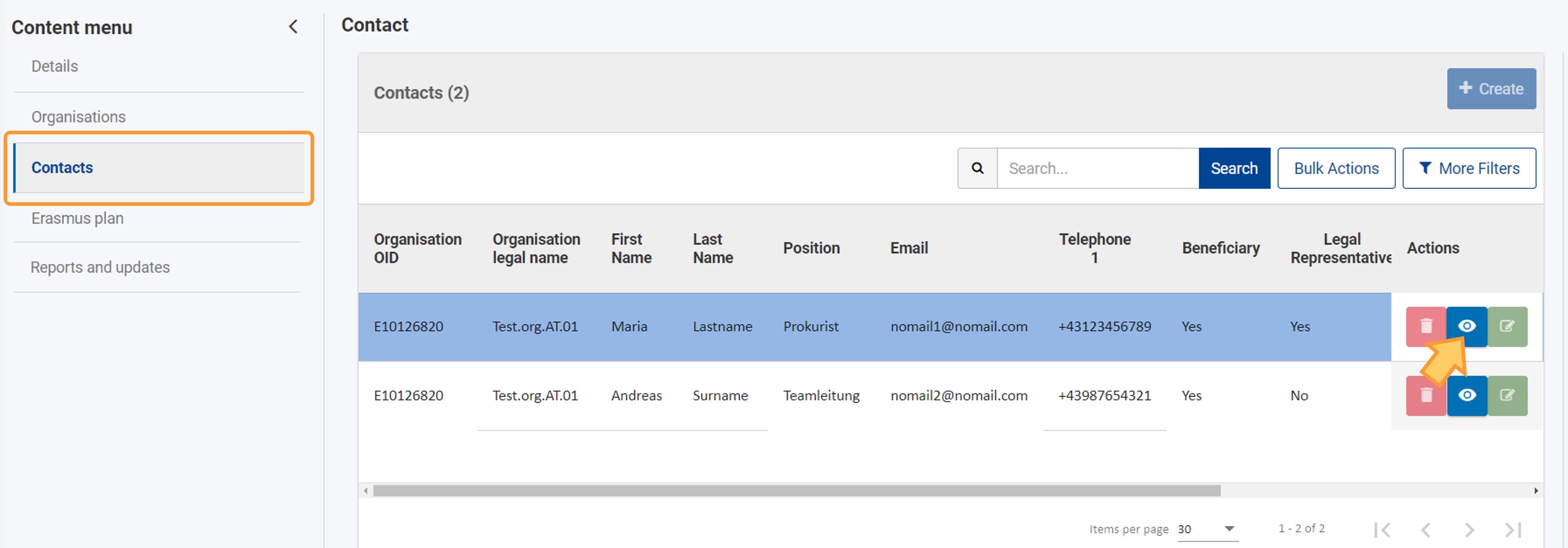
Selecting Associated persons from the content menu opens the list of Associated persons. The contact marked as Erasmus coordinator as well as the Legal representative are displayed. 

You only have the option to View the contact details by clicking on the blue view icon. You are not able to delete or edit the contact information. It is also not possible to add additional contacts. For changes to the accreditation Associated persons, contact the National Agency for an  amendment.

For general information regarding the Associated persons screen, please see the page Associated persons in projects.

Erasmus plan

Upon applying for a KA120 Erasmus Accreditation, the applicant organisation will have to provide information regarding the so called Erasmus Plan, which is composed of the following three parts, linking mobility activities with the organisation’s needs and objectives:
  • Objectives,
  • Activities and
  • Planning for management and resources.

The duration of the Erasmus Plan does not have to cover the entire programming period until 2027, it can cover a period from two to five years. When an accreditation is awarded and becomes available in Beneficiary module, the contacts of the accredited organisation can access the accreditation details, including the Erasmus Plan with the relevant objectives and details. All information is read-only. 

The National Agency will periodically request Accreditation Progress Reports and may request Erasmus Plan updates as part of the report to make sure the plan is and stays up to date. If important changes happen in the organisation, the accredited organisation can also request an update to the Erasmus Plan by contacting the National Agency with their request. The National Agency will decide if an update to the plan is required. 

Erasmus Plan screen

Selecting Erasmus plan from the content menu opens the Erasmus Plan screen, containing the Erasmus Plan Objectives. All information in this screen is read-only. Following information is available:
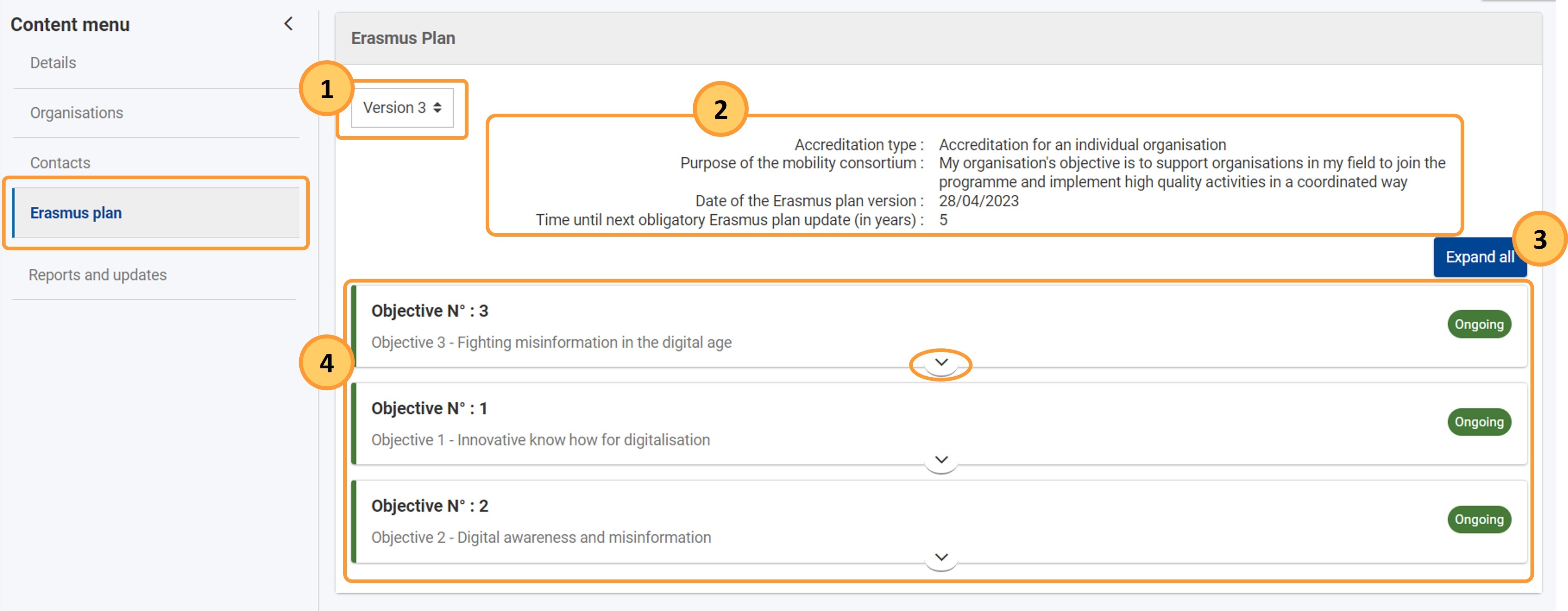
  1. Version drop-down: Allows to view previous versions of the Erasmus Plan, if available. By default, the last finalised version as per the NAs project management system is displayed. 
  2. General information: Provides details on Accreditation type, purpose, Date of the Erasmus Plan version and the Time until next obligatory Erasmus plan update (in years)
  3. Expand all button: Allows to expand all displayed objectives to view the detailed information available for each. 
  4. List of Objectives: Displays the available objectives for the selected Erasmus Plan version as collapsed cards per selected Erasmus Plan version, displaying the Objective number, Title and its status as a coloured badge.
    • Each objective can be expanded by clicking on the arrow. When expanded, the objective details are displayed. 

Erasmus Plan screen

Erasmus Plan versions

Use the Version drop-down to access (a) previous version(s) of the Erasmus Plan, where applicable. The screen will update and display the objectives as per selected version.

Information

A new Erasmus Plan version will only be available after it has been finalised in the National Agencies project management system, for example as a result of an Accreditation Progress Report.
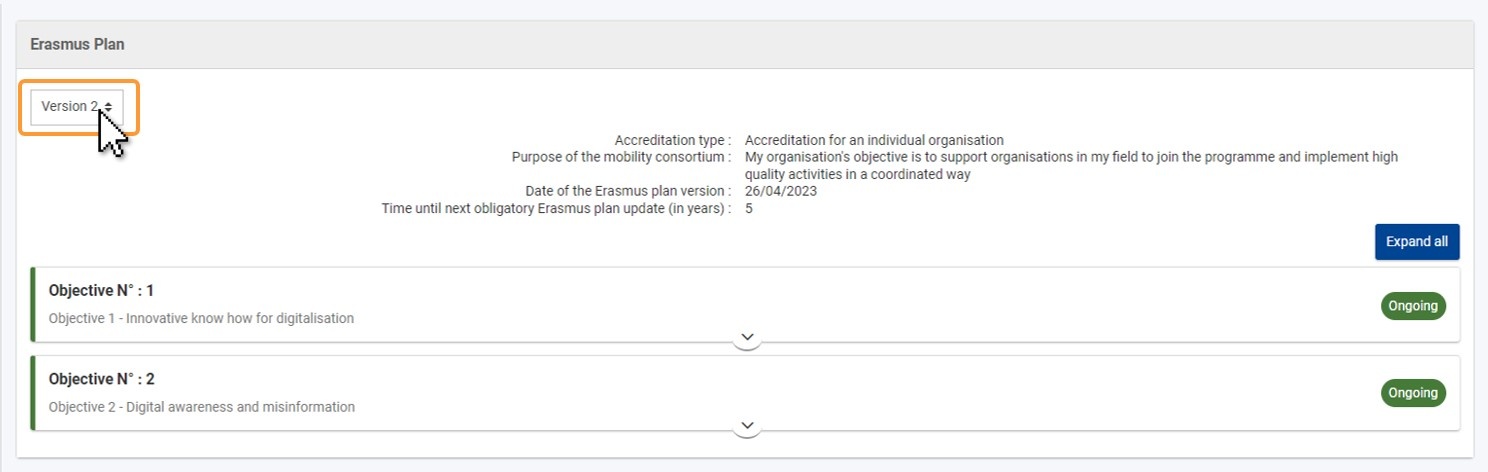
Use the version drop-down to view previous versions of the Erasmus Plan

Objective details

When you expand an objective, the Status, Start and End date, Title, Explanation, Timing and Measuring Progress information associated with this objective is displayed. All information is read-only. 
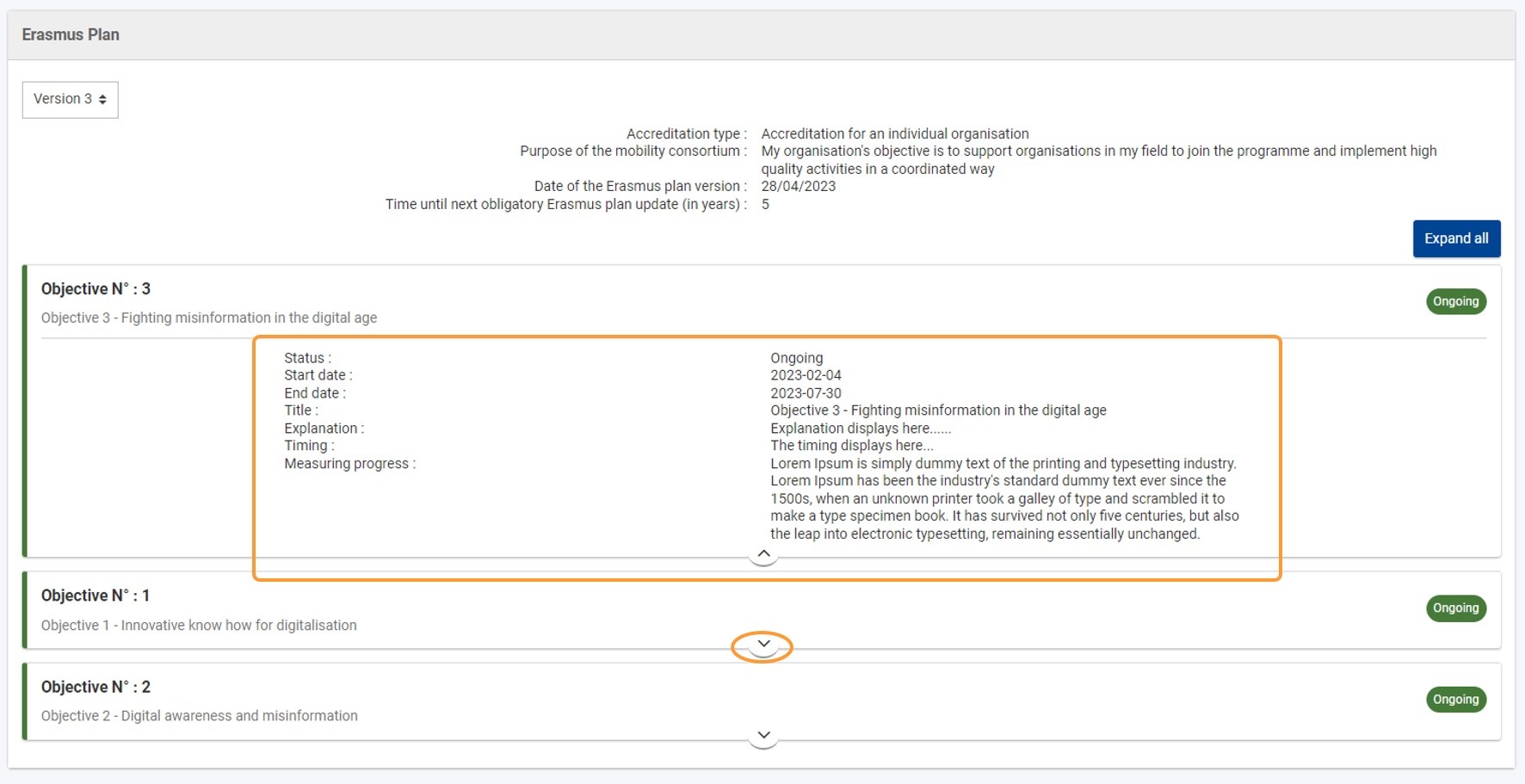
Erasmus Plan screen with an objective expanded, displaying the relevant informaton

Tooltips are available when you hover your mouse over Title, Explanation, Timing and Measuring Progress in the objective details.
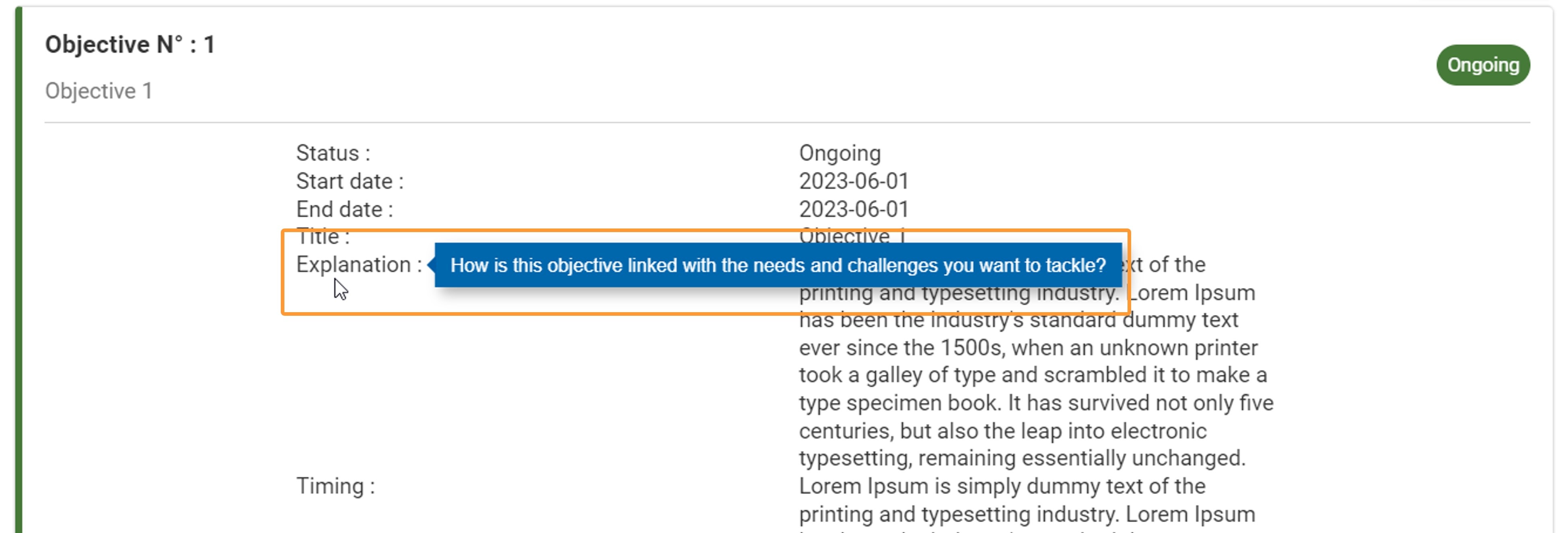
Tooltips available for the Objective details

Objective status

An objective can be in one of the following statuses:
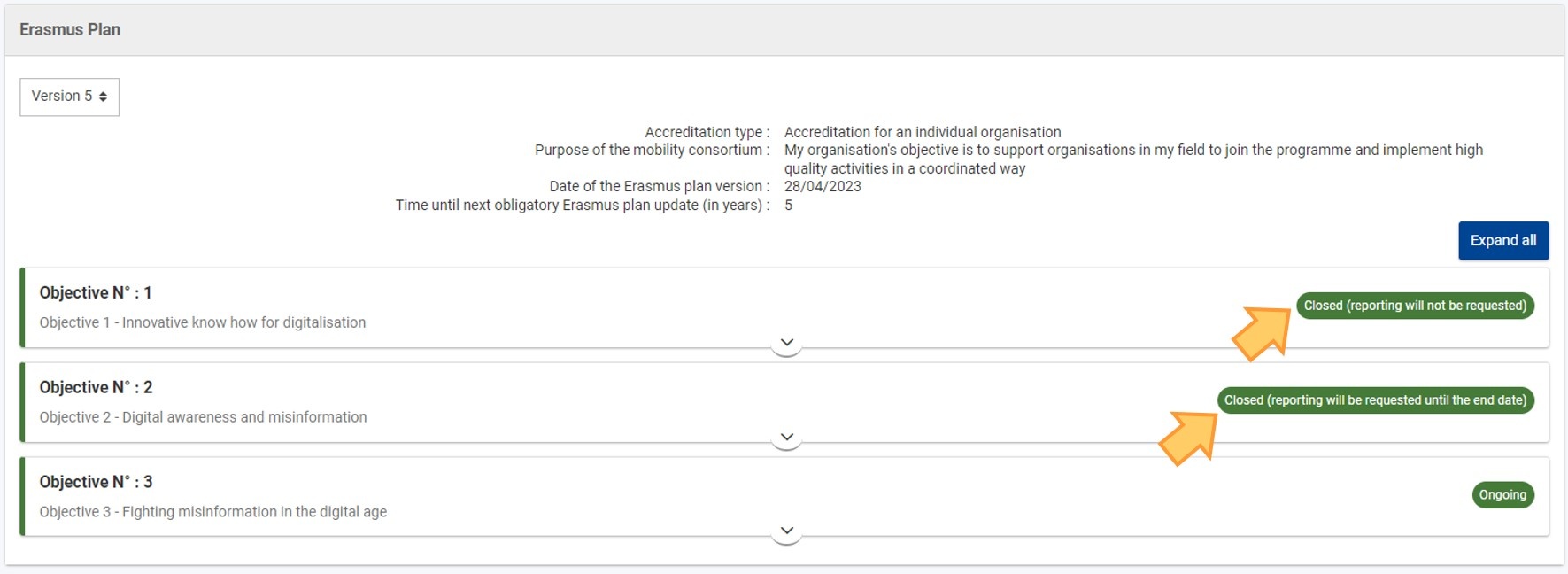
  • Ongoing
  • Closed (reporting will not be required)
  • Closed (reporting will be requested until the end date)


Erasmus Plan objectives in different statuses

Implementation summary

In this section you can see details of activities completed within the reporting period specified at the start of the report, split in two sections: Project overview (1) and Activity overview (2).

In the Project overview section the table displays the following information: 

  • Project code: the Agreement number of the project registered under the current Accreditation.

  • Number of consortium members: shown only if accreditation type is Accreditation for a mobility consortium coordinator. It represents the count of members in the consortium.
  • Status: the status of the project when the table is loaded. The Status value is defined as follows:
    • Ongoing - if the final report is not submitted;
    • Final report submitted - if a final report has been submitted, but project not yet Terminated;
    • Closed - if the project is Terminated.
  • Start date: the start date of the project registered under the current Accreditation.
  • End date: the end date of the project registered under the current Accreditation.
  • Total number of participants: the total numbers of participants - staff, learner and other participants.
  • Number of learners: the count of registered mobilities with learner participants in the projects registered under the current Accreditation.
  • Number of staff: the count of registered mobilities with staff participants in the projects registered under the current Accreditation.
  • Number of other participants: the count of registered mobilities with other participant types in the projects registered under the current Accreditation. The category includes invited experts and hosted teachers in training.

In the Activity overview section the following information is displayed:

  • Activity type: the activity types registered for each project under the current Accreditation.
  • Number of participants: the total numbers of participants (staff, learner and other participants)
  • Average duration (in days): an average of all days registered for the respective activity type.
  • Number of participants with fewer opportunities: the total of registered mobilities with participants with fewer opportunities.
  • Number of participants in blended activities: the sum of participants for blended activities.
  • Number of persons using sustainable means of transport (green travel): the sum of participants in mobilities with registered sustainable means of transport.
  • Number of participants in international activities - only for KA120-VET: the sum of participants in mobilities with international activities. 

Each of the table displays a Total for its respective items displayed on page.


Reports and updates

From the Reports and updates section of the accreditation it will be possible to complete and submit the Accreditation Progress Report, if requested by the National Agency. See:
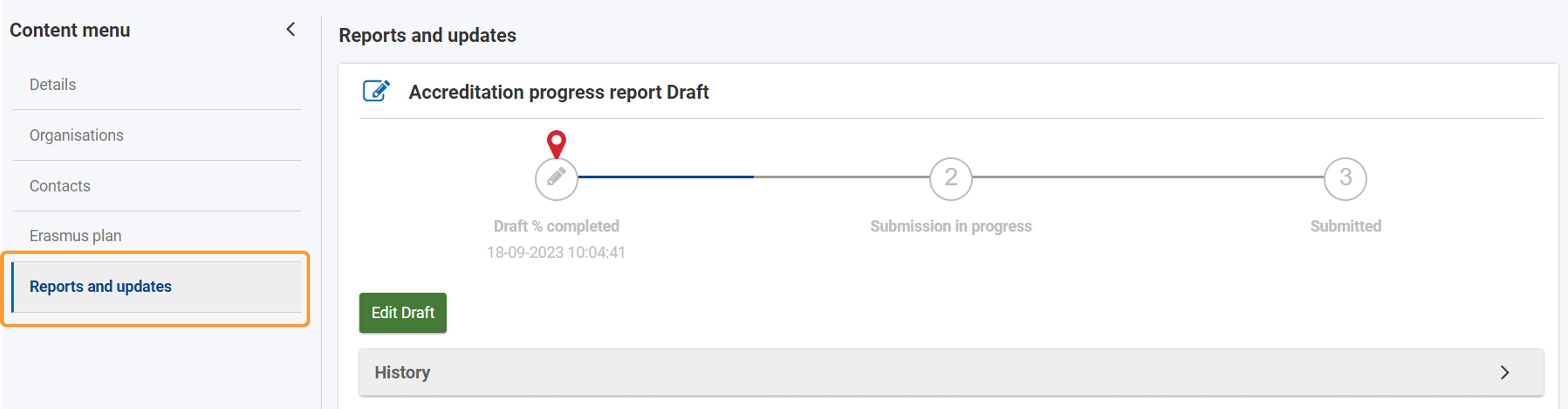
for details. If no Accreditation Progress Report was requested for the accreditation by the NA, the screen will be empty.

Reports and updates

Reports and updates history

In this section you can see an overview of all reports and updates linked to your accreditation, split in two sections: Accreditation Reports (1) and Final reports (2).

The table displays information on:

  • Report: the type of report for the entry. The possible values are: Accreditation progress report, Structured monitoring visit, Project final report (project call year)
  • Report parts: shows the value selected in the field Report parts during report initiation. The column is empty if no information is available. 
  • Linked Erasmus Plan version/Linked Activity Plan version: the format is "Version #", where # is the number of respective Erasmus plan version. The column shows:
    • Empty if no information is available
    • Erasmus Plan for KA120
    • Activity Plan for KA150 and ESC50
  • Reporting period start date - in dd/mm/yyyy format: shows the value selected in field: 
    •  Reporting period start date for Accreditation progress reports and Structured Monitoring Visits
    • Project start date of the respective accredited grant project for Final Reports 
  • Reporting period end date - in dd/mm/yyyy format: shows value selected in field: 
    • Reporting period end date for Accreditation Progress Reports and Structured Monitoring Visits
    • Project end date of the respective accredited grant project for Final Reports 
  • Status: shows the value of Status field of a given Accreditation Report, Structured Monitoring Visit or Final Report process. 
  • Launch date/Visit start date - in dd/mm/yyyy format: the value of the field: 
    • Launch date from the Start new element - for Accreditation Progress Reports, 
    • Visit start date from the Start new element - for Structured Monitoring Visits, 
    • Report start date from report workflow start date in Project Management Module - for Final reports
  • Submission deadline/Visit end date for Accreditation Progress Reports: it shows value of field:
    • Submission deadline during Accreditation Progress Report initiation
    • Final report submission deadline date from Project details - Application data - Project overview page, for Final reports
  • Completion Date - in dd/mm/yyyy format: 
    • For Accreditation Progress Reports - the date when the task Accreditation progress report assessment is completed with Accept.
    • For Structured Monitoring Visits - the date when Complete action is confirmed (the beneficiary clicks Yes in the Complete popup). 
    • For Final Reports - the date when the task Complete final report is finalised with the outcome Complete the final beneficiary report (approve the assessment and the NA validation)
  • Score: filled in only if the report status is Completed. Otherwise, no information is displayed. 


Follow-up

This section displays any existing formal instructions and recommendations issued by the National Agency for you to implement.

The table displays information on: 

  • ID: an unique sequence ID (per project code) for all item types (instruction/recommendation) created during any linked event
  • Type: the type of instructions or recommendations
  • Importance: the possible values are: Low, Medium or High. The value is selected by the National Agency when creating the item in Project Management Module. 
  • Description: text field, maximum 1000 characters. The description is given by the National Agency when creating the item in Project Management Module.
  • Linked event: based on the context in which item is created - for accreditation suspension, accreditation observation, final report of linked accredited grants.
  • Creation date: the date when the event was created
  • Closure date: the date when the event was closed
  • Conclusion: the resolution of the event. The column is empty if the status is Active. The maximum number of characters is 1000. 
  • Status: information coming from Project Management Module. The possible values are:
    • Active - status from creation time to closure time
    • Closed - after closure.