Welcome
This page explains how to add the applicant organisation and where applicable, organisations of all consortium members or partners to your application form.
Please note
In KA151 this section in the Content menu and in the title of the page is called Applicant Organisation, not Participating Organisations.
The content of the Participating organisations section depends on the Key Action and action type you are applying for.
For most key actions you must first specify details about the Applicant organisation: first the organisation ID, which must have been specified in the Organisation Registration system, followed by the Profile of the applicant organisation, Accreditation information (if applicable), associated Contact persons from the organisation and Background and experience of your organisation.
For key actions where partner organisations and/or a consortium are foreseen, the same information must be specified for each partner organisation/consortium member, if not already done during an existing accreditation for the applicable key action.
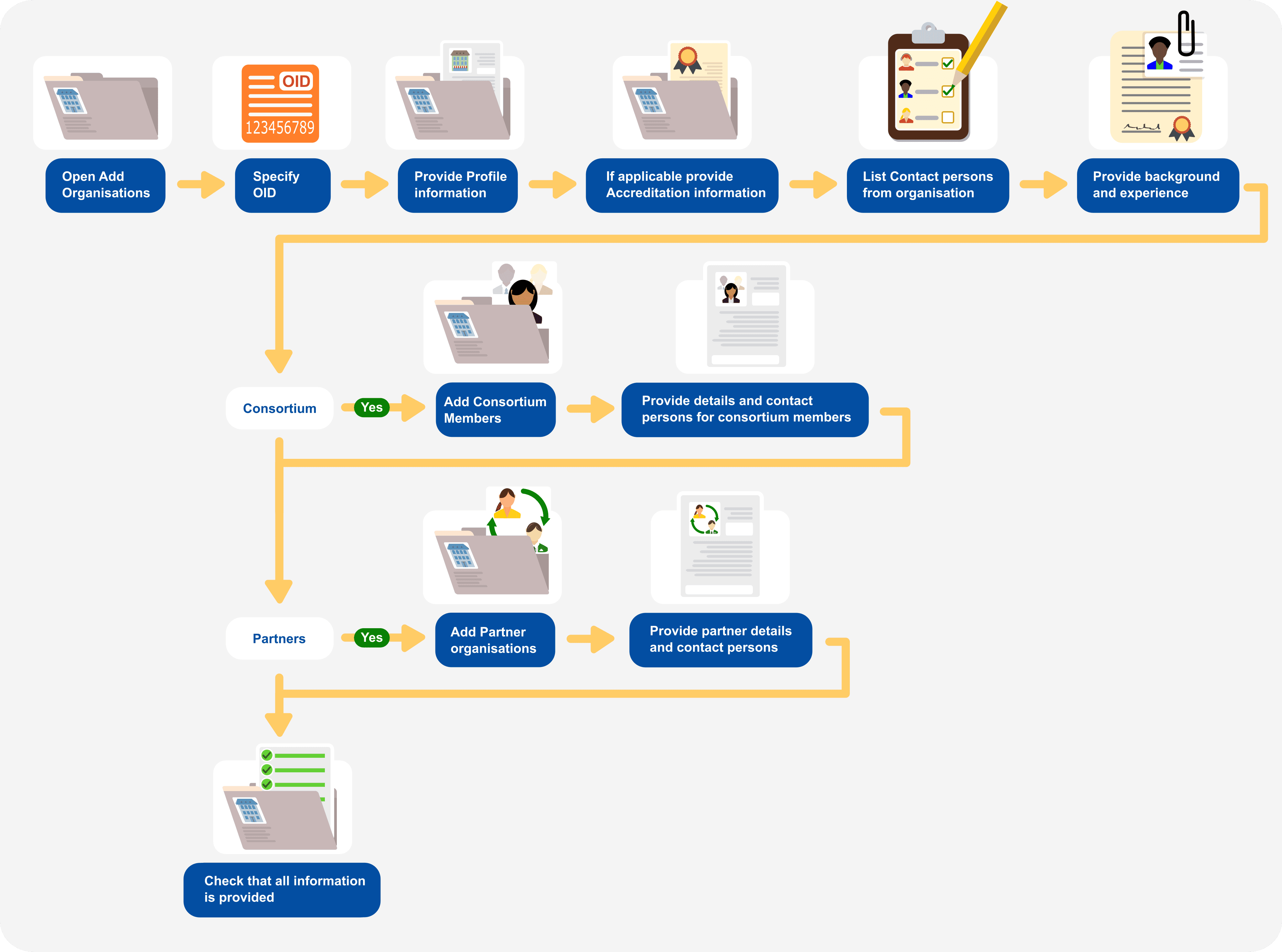
Below we have detailed how to complete the section, as well as examples of specificities for certain key actions.
Information
Questions or fields may vary depending on the action you apply for. Please read the onscreen information carefully to complete the relevant fields and sections.
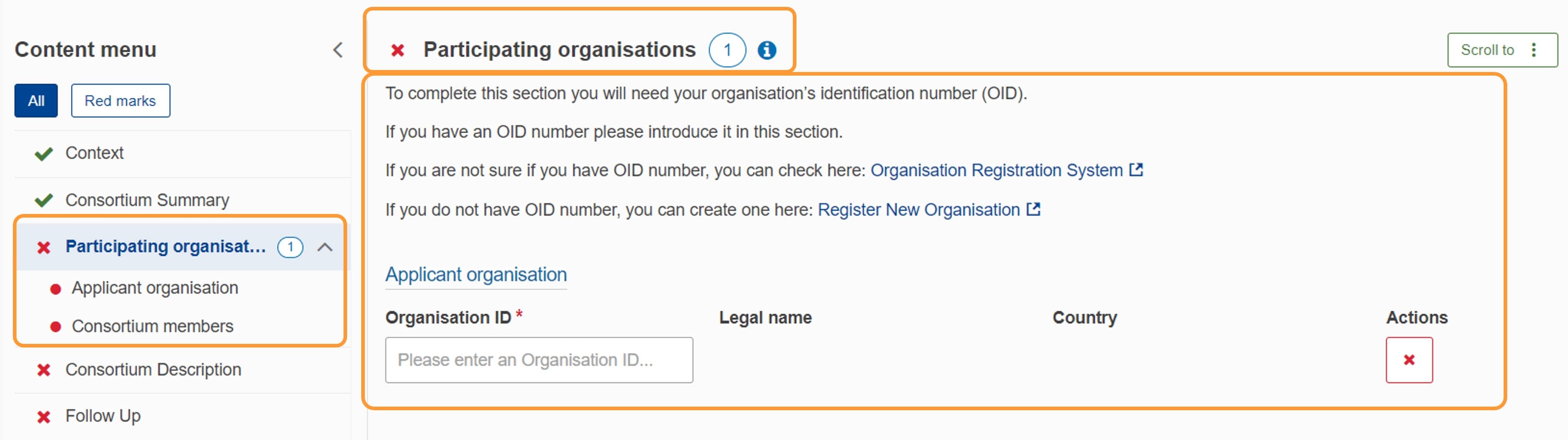
Select Participating organisations or Applicant organisation in the Content menu, depending on the key action and type of your application.
The Participating organisations screen opens.
As you add organisations to the application, the number next to Participating organisations and Consortium members (where applicable) is updated.
Take note
Applications must be submitted to the National Agency in your own country unless an exception is stated in the Programme Guide. If your organisation has an exceptional status that links it to another country's Authority, please contact the National Agency in your country to confirm the status of your organisation before submitting the application.
In the Participating organisations section scroll down to Applicant organisation.

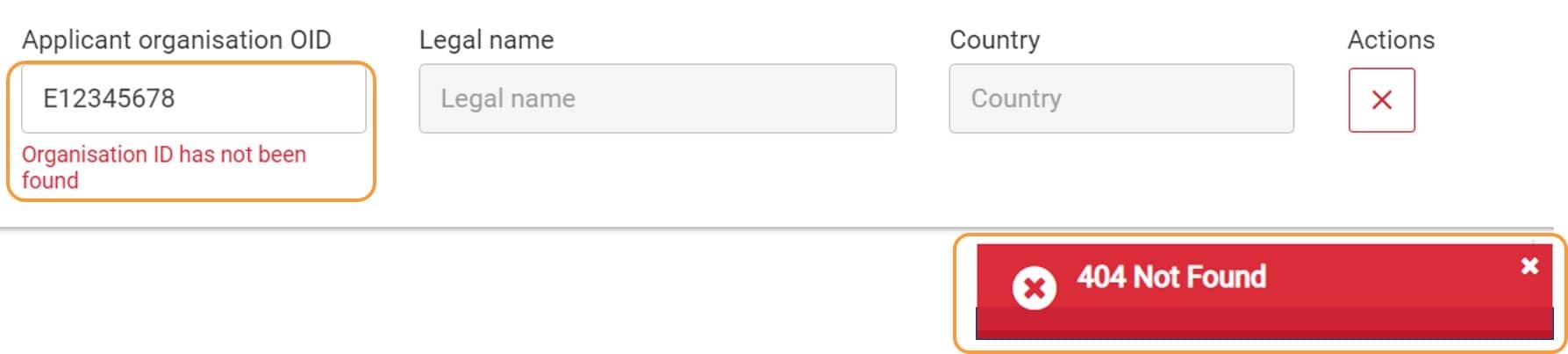
If the entered Organisation ID is not found, an error message is displayed.
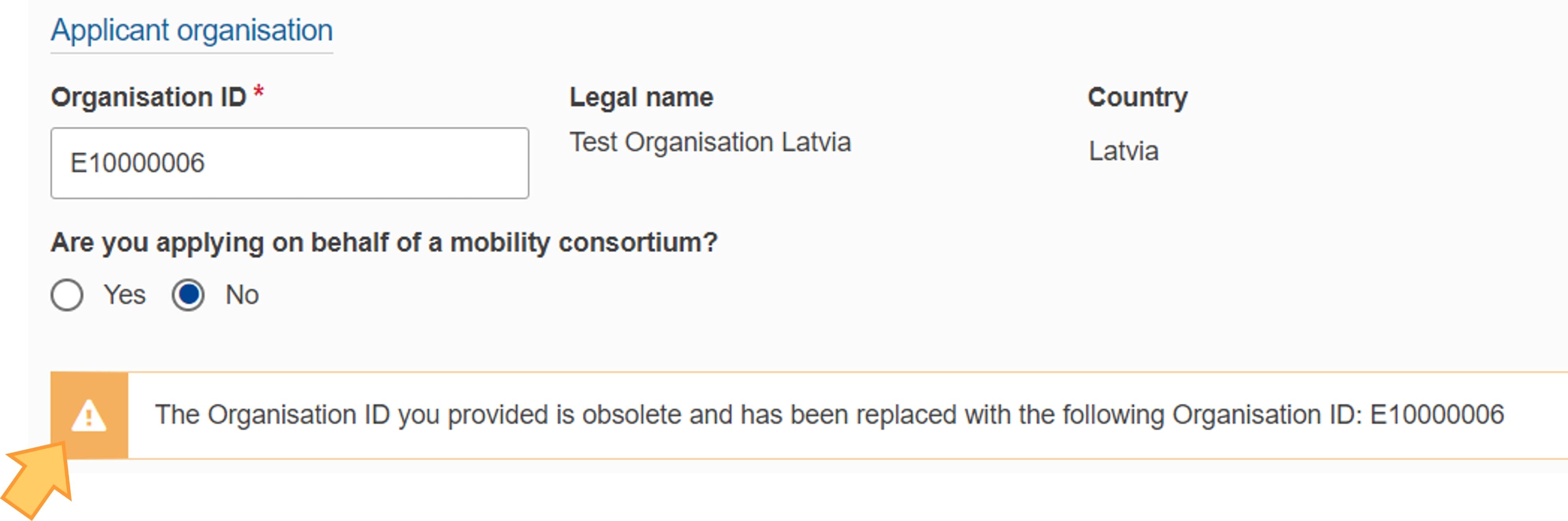
If the entered Organisation ID is obsolete, meaning it has been replaced with a different OID for the same organisation in ORS and in the National Agency project management system, a warning message is displayed and the obsolete OID is automatically replaced with the newer one in the application form.
To complete all required subsections for the organisation, click on the organisation name in the Content menu.
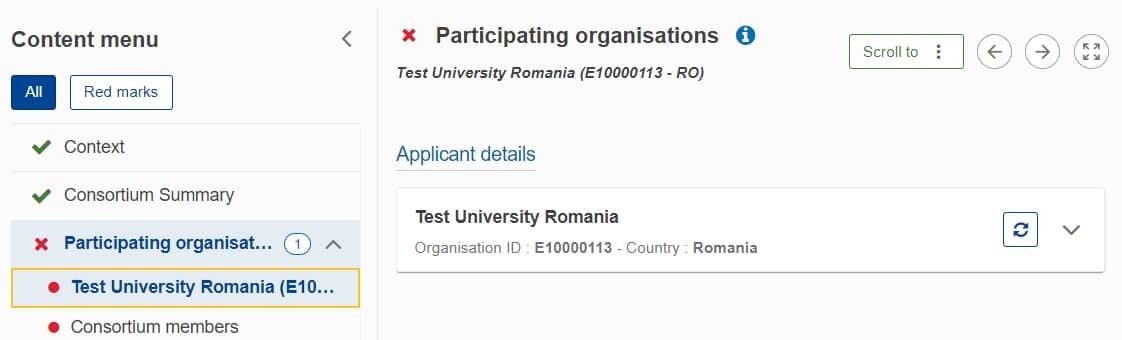
The Participating organisations details screen opens.
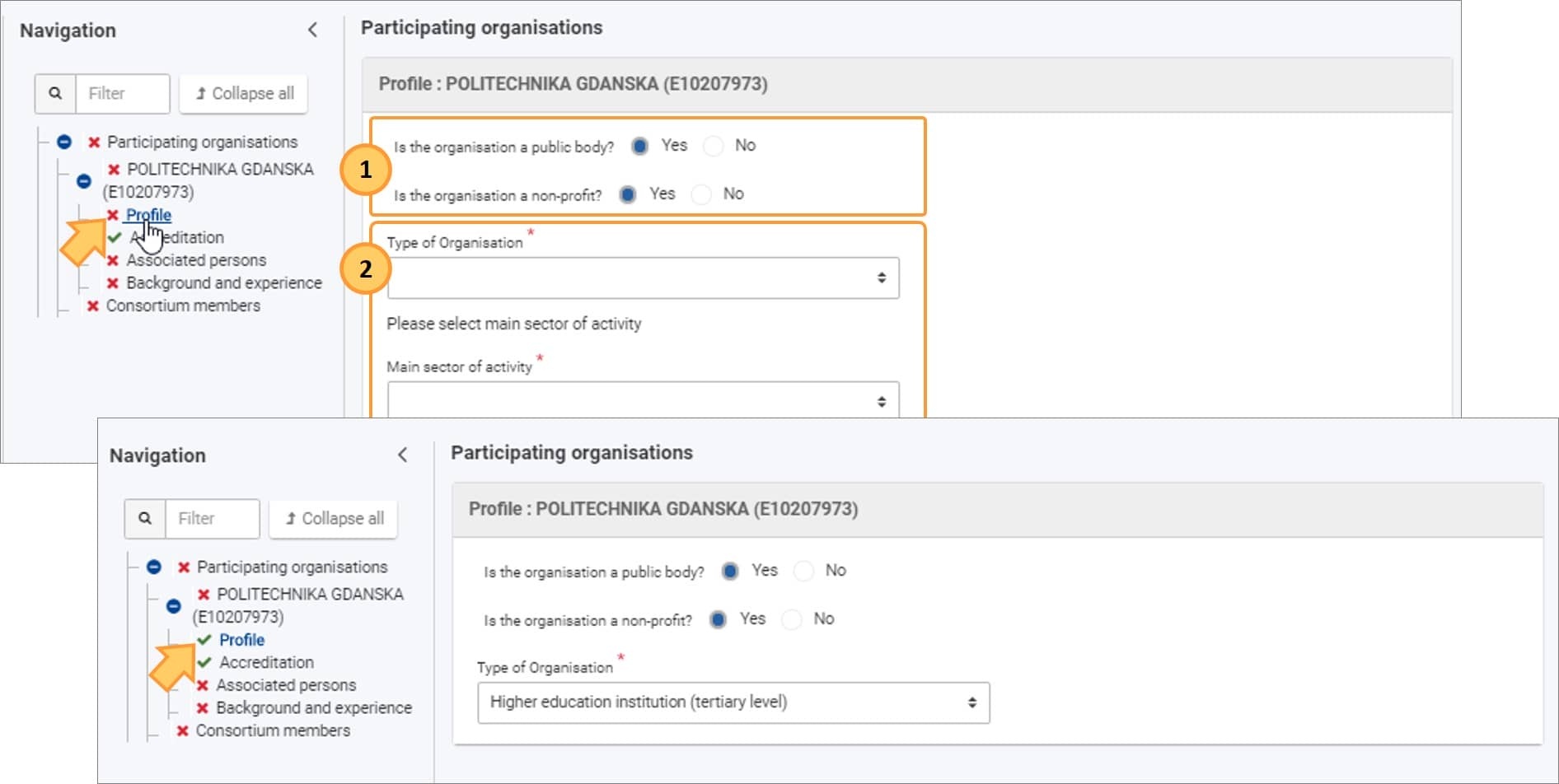
Scroll down the page to see a number of subsections. Some subsections are prefilled, others need to be filled in. The available subsections depend on the type of application.
In our KA130-HED example we see:
This section is prefilled with information from the Organisation Registration system.
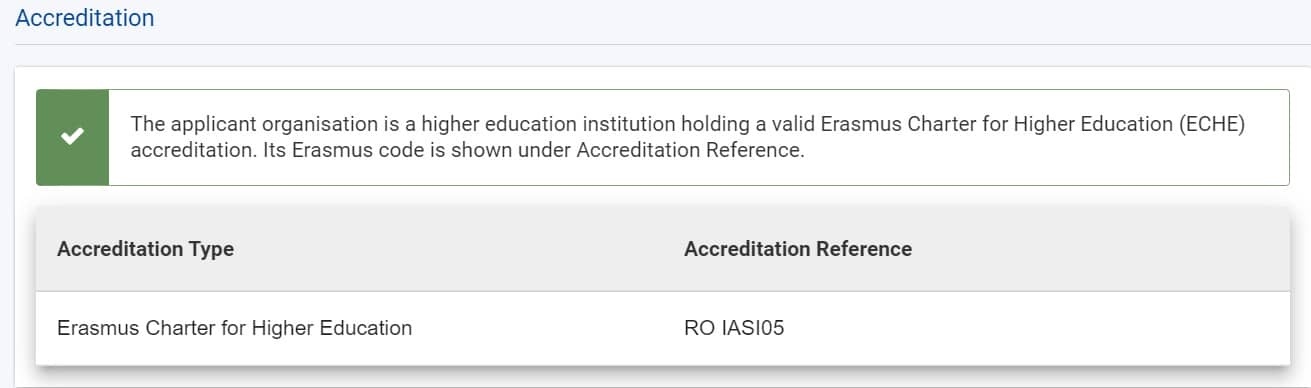
Depending on the action type and type of institution, the Accreditation section for the concerned application may be required.
If the accreditation requirements have already been fulfilled, the Accreditation details are displayed.
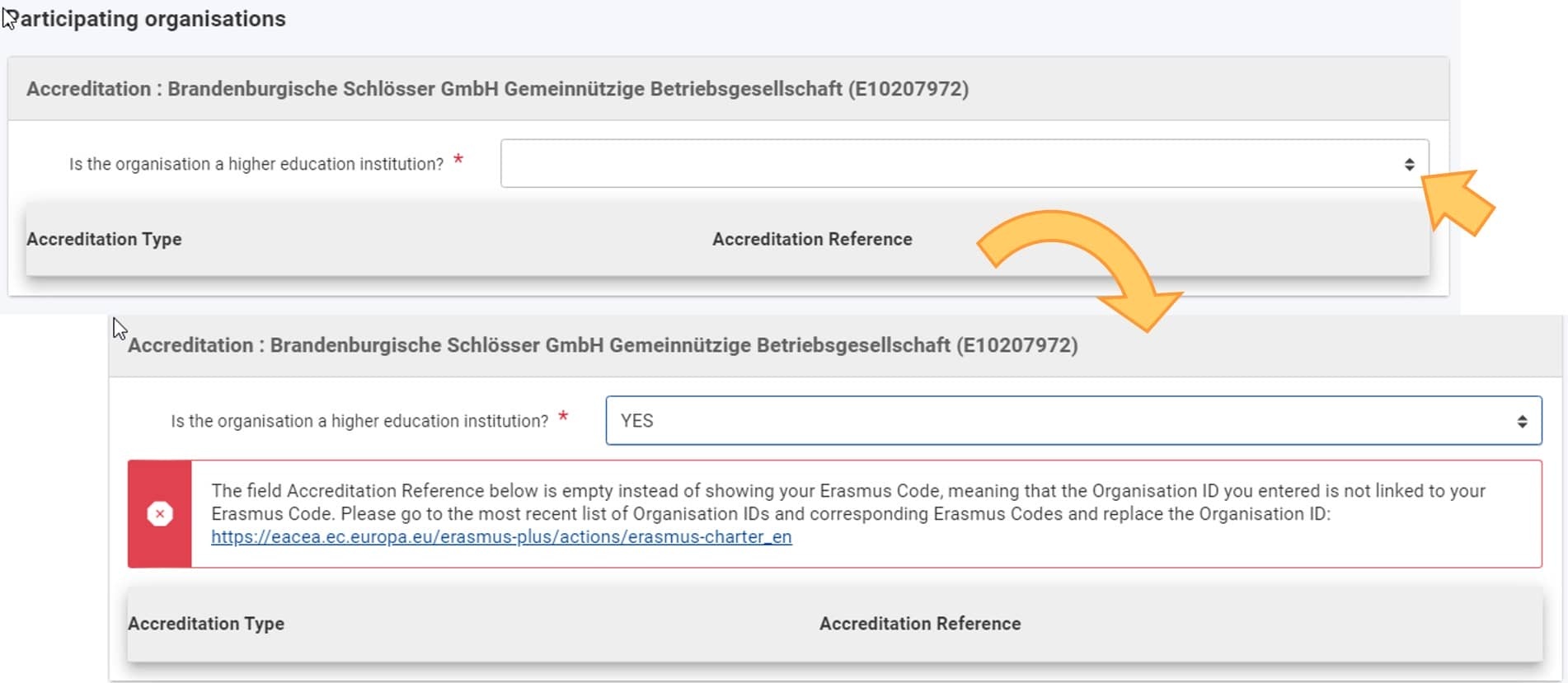
If the institution is not accredited for the action type, you are requested to select whether your organisation is a Higher Education institution.
Depending on the answer, either accreditation is not required or an error message is displayed.
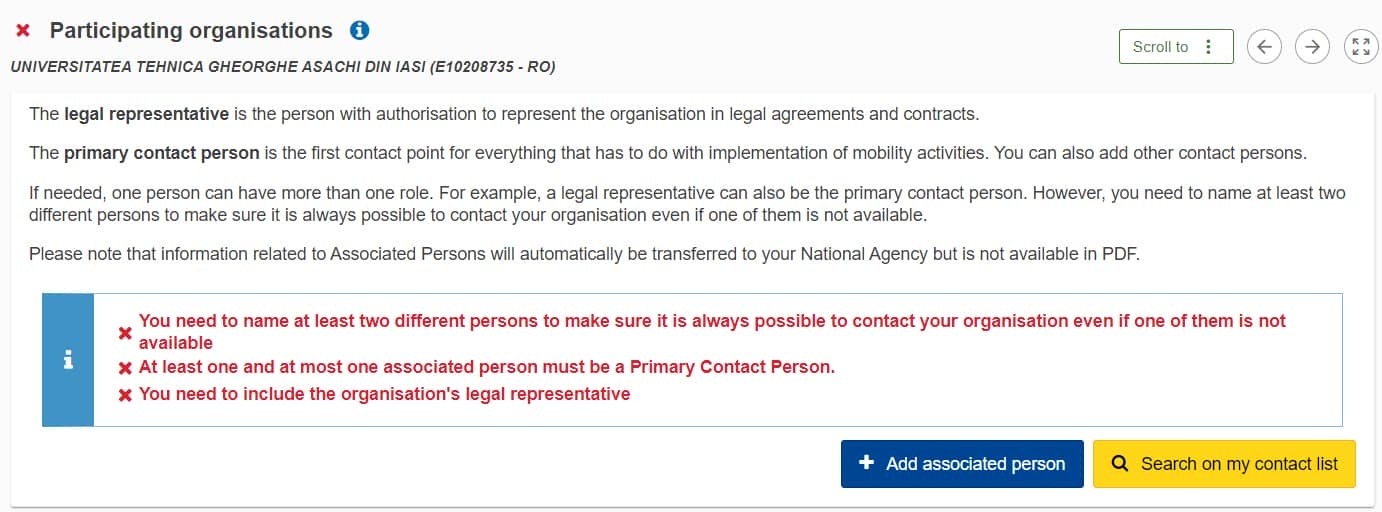
See the page Associated Persons in applications for more details on how to complete this section of your application.
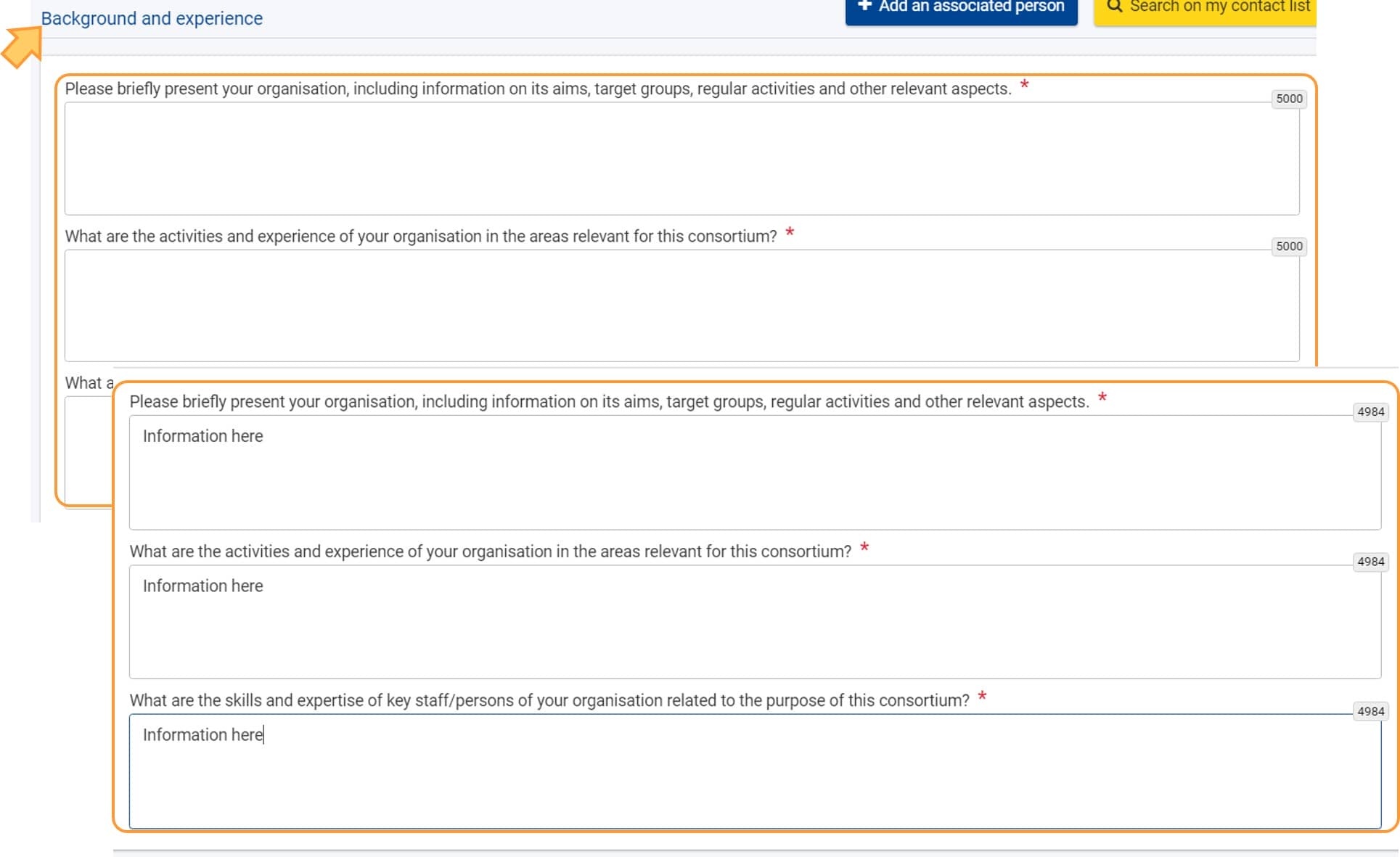
Depending on the application form, you may need to fill in additional sections.
In this example, you must fill in the Background and experience section. Provide the required information in the available fields.
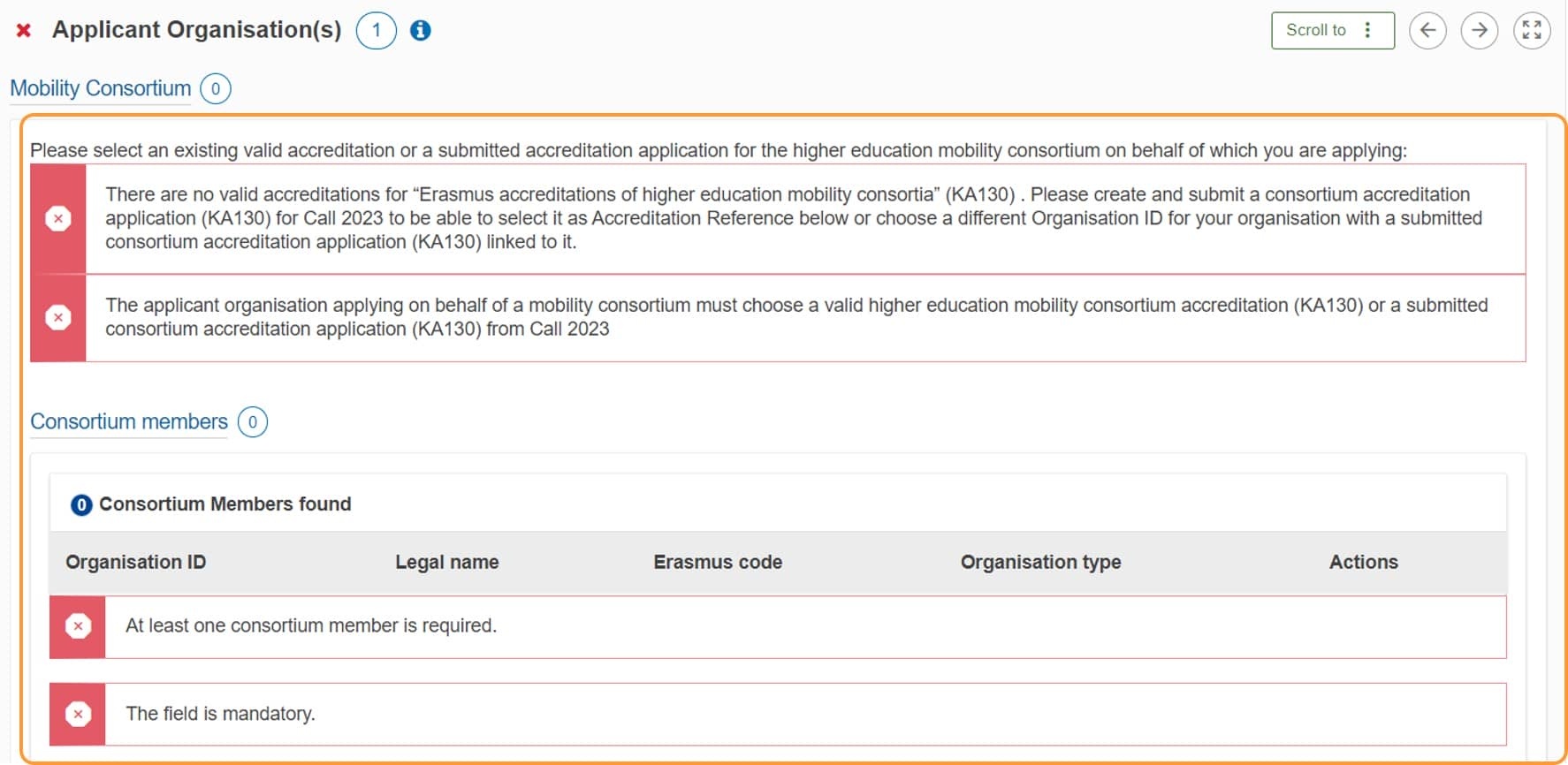
If you are applying on behalf of a consortium you need to add the Organisation ID and details of each of the members of the consortium. The options differ depending on the action type.
Please note that a number of requirements for the consortium are listed and must be covered to complete the application. These will be shown as red error messages, which disappear as the various requirements are fulfilled.
Take note
Consortium members must be from same country as the applicant organisation.
This option is available in application forms for KA121 - Mobility for learners and staff of accredited organisations in school education, vocational education and training, and adult education and KA130-HED - Erasmus accreditation for higher education mobility consortia.
Select Participating organisations in the Content menu and scroll down to Consortium members.
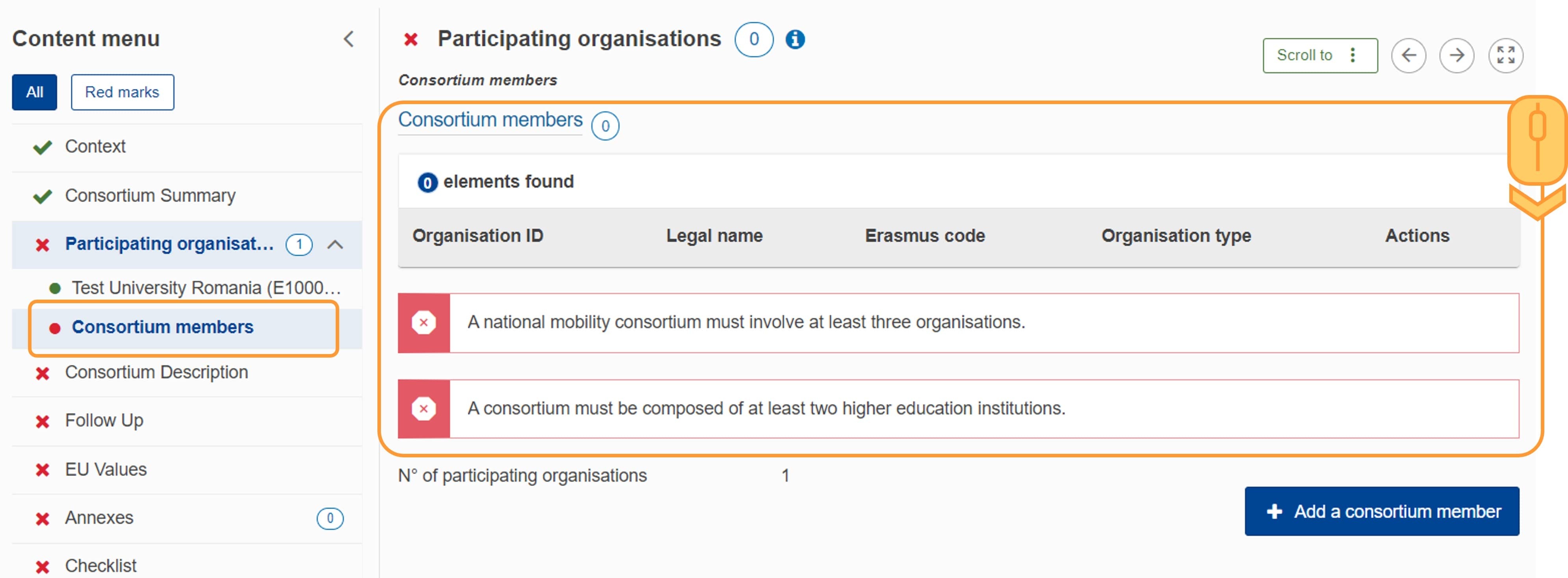
For each consortium member you wish to add, click the Add a consortium member button in the bottom right corner, then enter the Organisation ID.
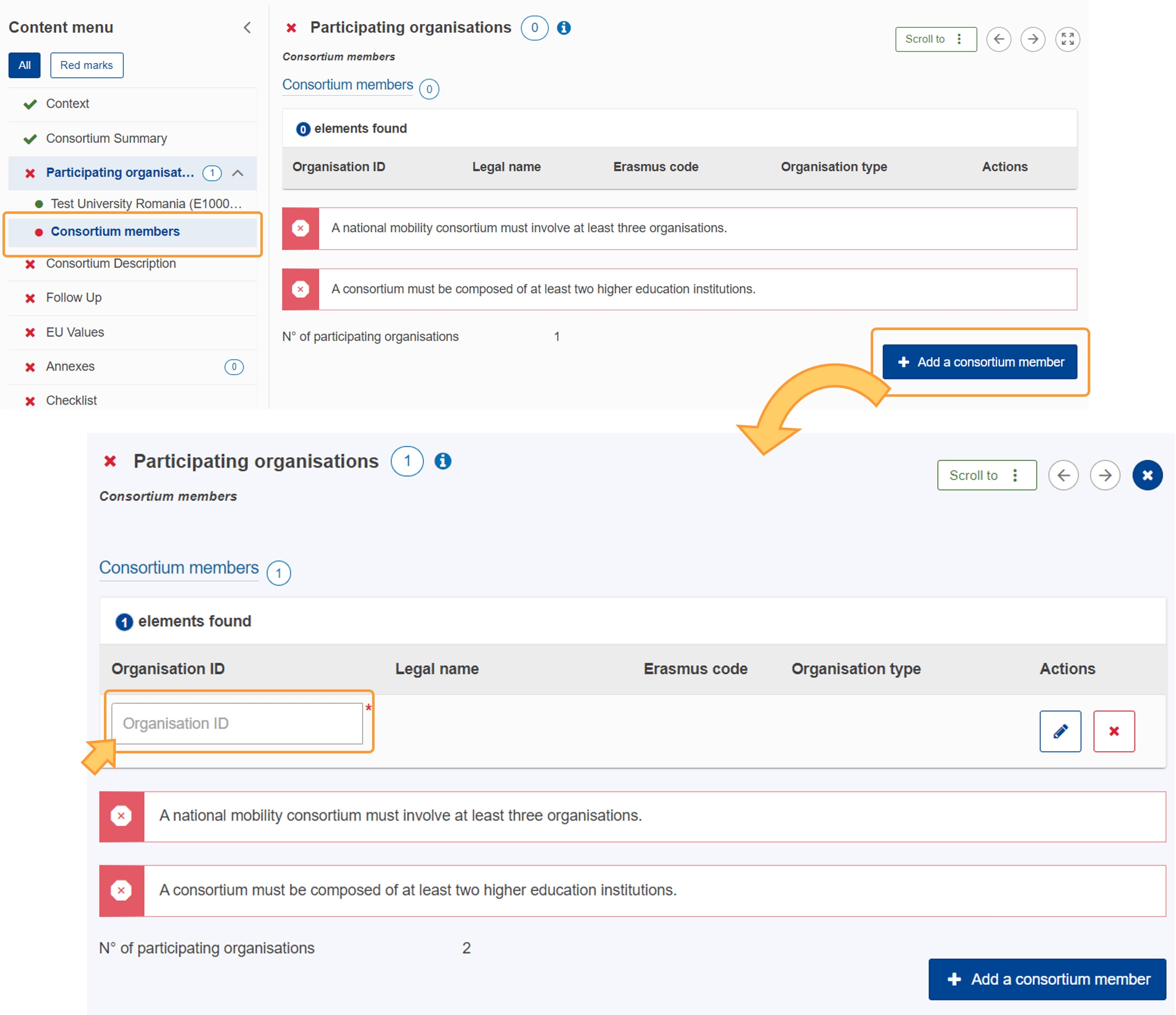
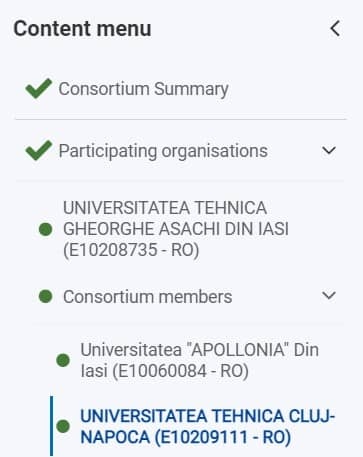
In the Content menu the organisation name and Organisation ID of each consortium member is now displayed under Consortium members.
After having added the Organisation ID for all consortium members, complete the remaining details for each organisation as described under Complete organisation details above.

In Erasmus+ projects developed under KA121 - Mobility for learners and staff of accredited organisations in school education, vocational education and training, and adult education, you have the possibility to retrieve the consortium partners from your accreditation project (either already valid for the current Multiannual Financial Framework (MFF) or submitted for the current call year). To do so:
Select Participating organisations in the Content menu and scroll down to Consortium.
Click on the Load previous list of consortium members button, then click on YES in the pop-up message to confirm the action. A message is displayed, containing the project code of the accreditation project where the consortium partners were retrieved from, and a reminder that personal information about contact persons and legal representatives cannot be retrieved automatically due to data protection rules, therefore all contact persons must be added manually to the relevant organisations in the current application form. Click OK to close the message.
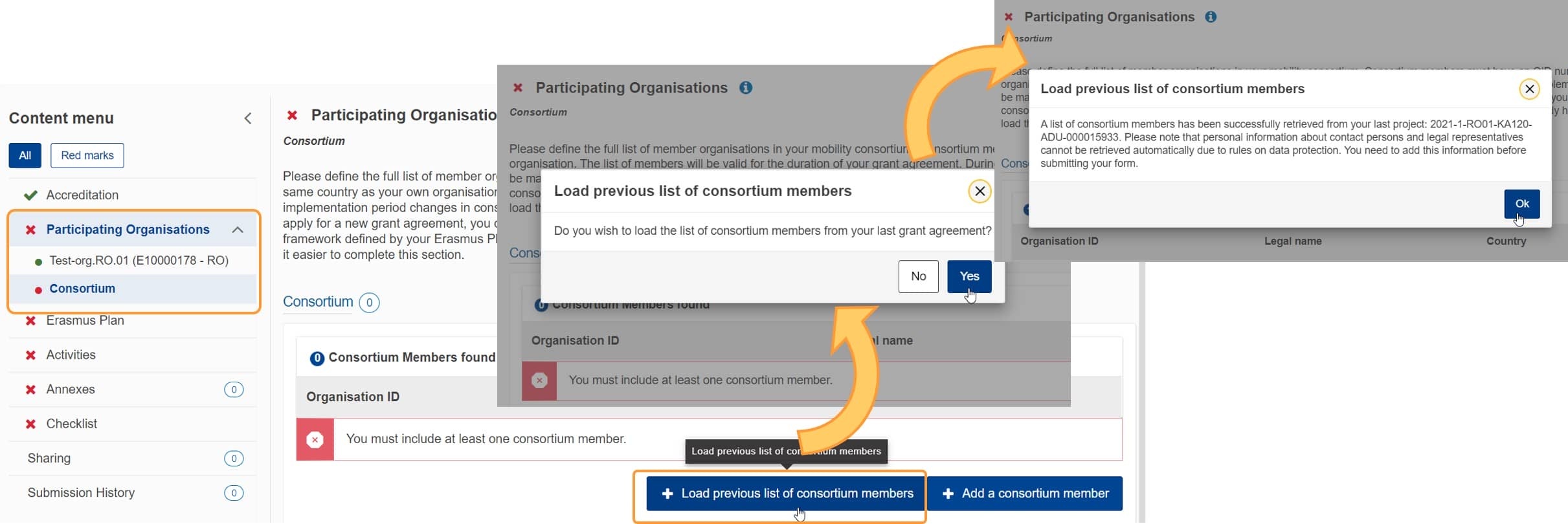
In the Content menu, the organisation name and Organisation ID of each consortium member added this way is now displayed under Consortium.
The consortium composition for the current application can be changed at any time: you can remove (1) any of the previous consortium members or add new consortium members using the Add a consortium member button (2), as explained above under Add consortium member option.
Tip
Use the download icon in the Actions column to download the accession form for each of the consortium members, then upload the completed documents in the Annexes section of the application form.
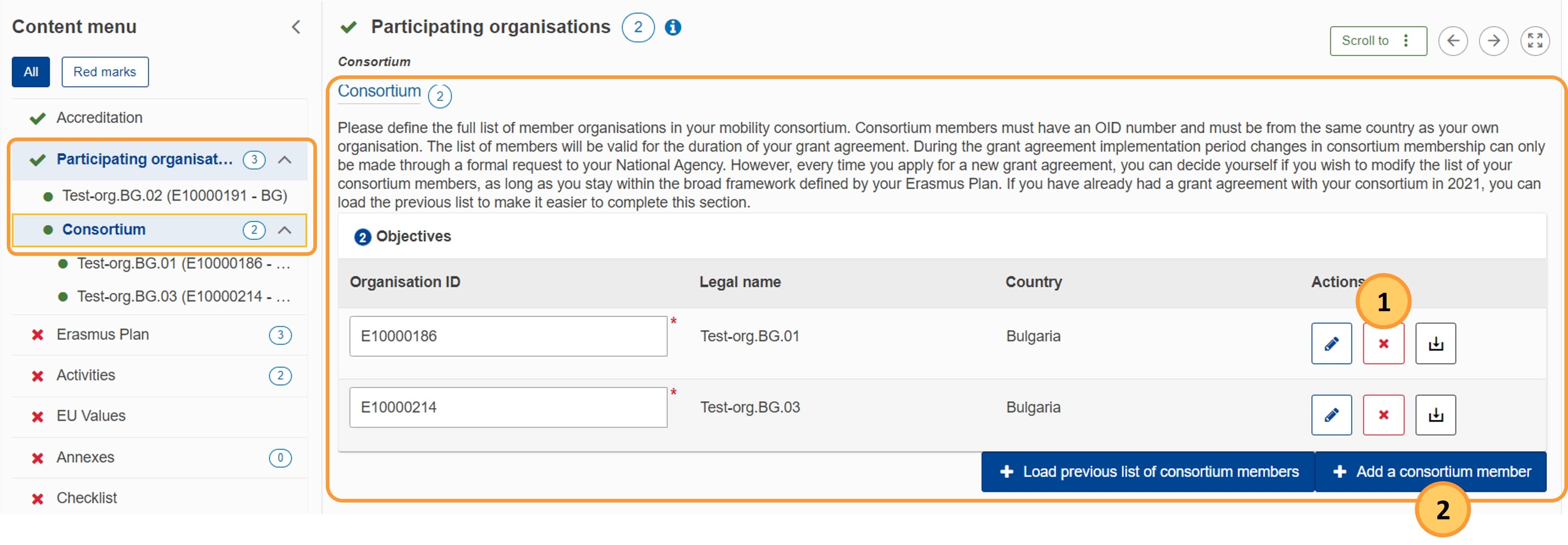
After having added the Organisation ID for all consortium members, check/complete the remaining details for each organisation as described under Complete organisation details above.
This option is available in higher education projects (KA131-HED - Mobility of higher education students and staff, K171-HED - Mobility of higher education students and staff supported by external policy funds).
In higher education consortium applications, the consortium members are retrieved from the KA130-HED accreditation project once the Organisation ID of the applicant organisation is provided.
Here is an example of a consortium application where the Organisation ID of the Applicant organisation has already been filled in.
Under Mobility Consortium, click in the Accreditation Reference field to display all valid higher education mobility consortium accreditations (KA130-HED) from the current MFF as well submitted consortium accreditation applications (KA130-HED) for the current call year, where you are the applicant. Select the relevant accreditation to be used in the current KA131-HED or KA171-HED application. The consortium members are automatically retrieved and displayed.
Tips
If you provided a Mobility Consortium Name in the Consortium Description section of your KA130-HED accreditation application (as of Call 2024), the name is also displayed here.
Use the download icon in the Actions column to download the accession form for each of the consortium members, then upload the completed documents in the Annexes section of the application form.
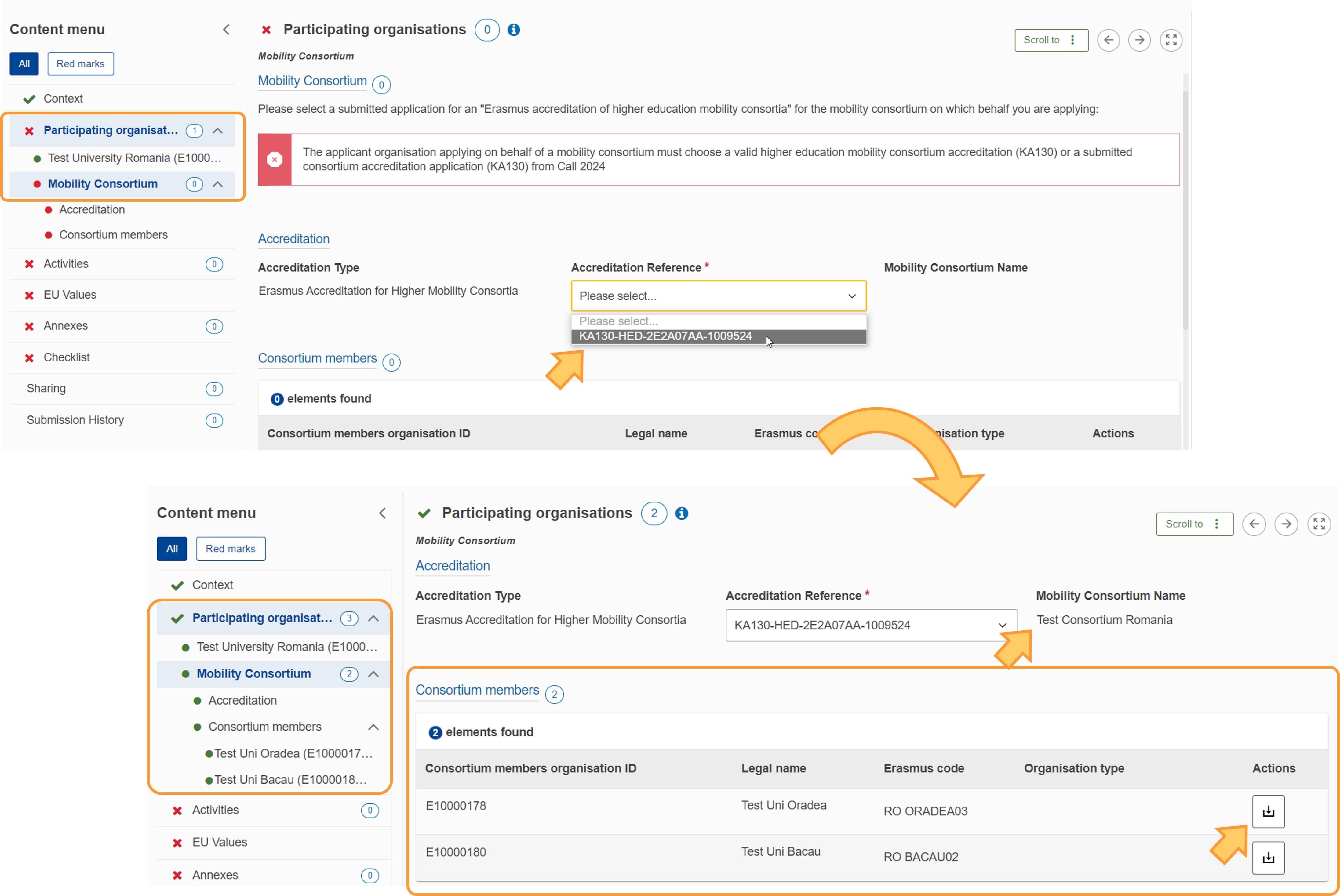
Once the Organisation ID has been filled in for an organisation (applicant, consortium member or partner), one or more of the following options are available for the participating organisations, depending on the key action and the organisation role in the application:
Edit organisation details - brings you to the details screen for the selected organisation
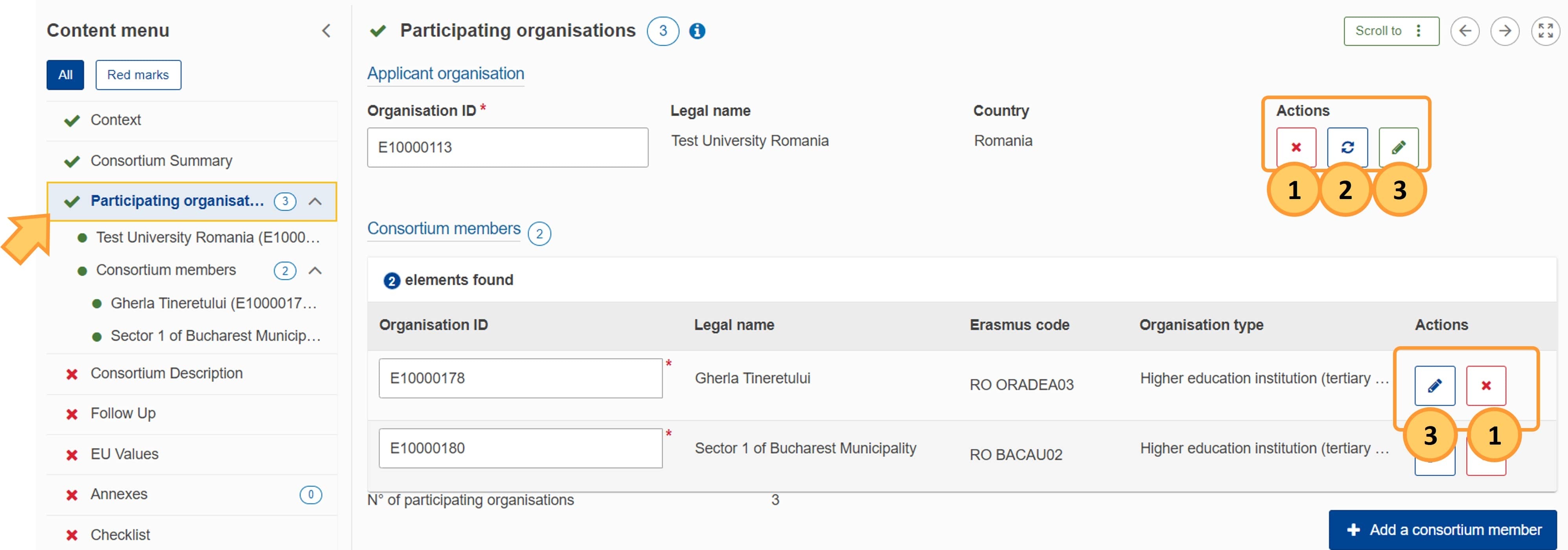
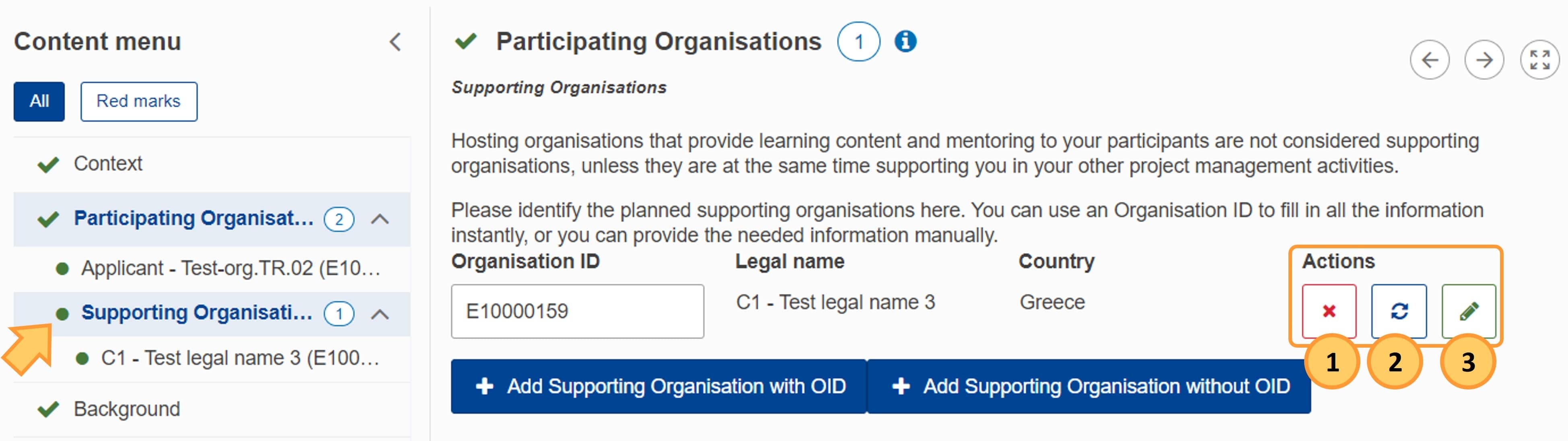
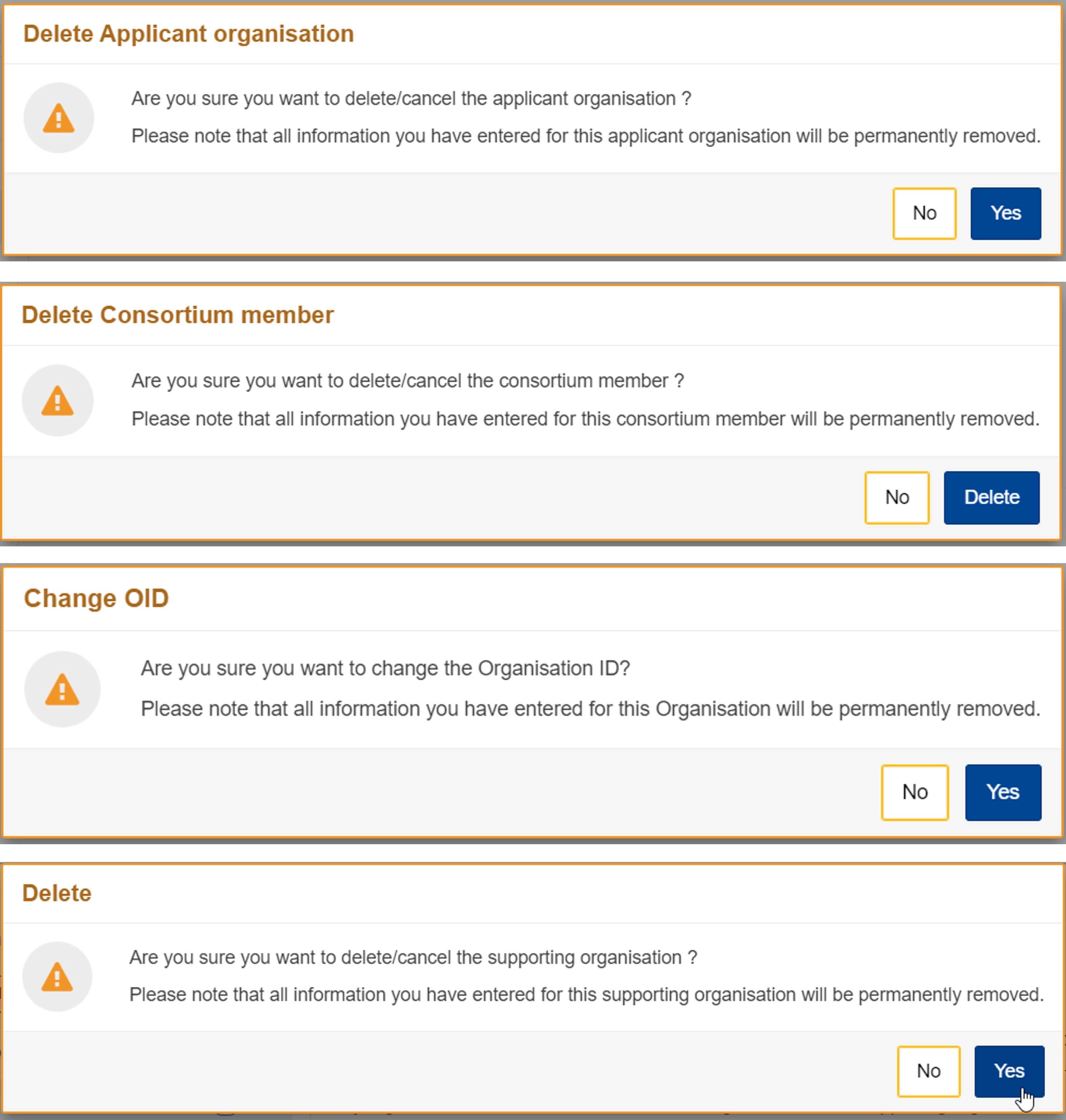
You can delete an organisation either by clicking on the Delete icon (X) next to it or, where applicable, replacing its Organisation ID. confirmation pop-up will ask you to confirm the deletion.
Read the message carefully and click on Yes/Delete (or similar) to remove the organisation. All related details are also deleted from the application form.
Important
If you delete the applicant organisation, the application is reset and all information previously provided in the other sections is also deleted.
Here are some examples of confirmation messages for deleting an organisation:
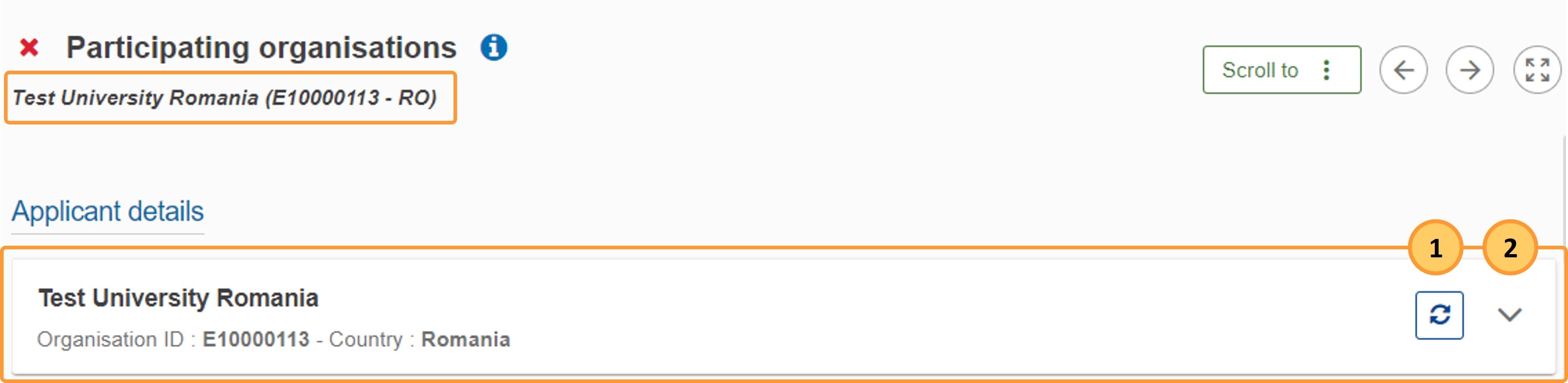
If details have been updated in the Organisation Registration system, clicking the Refresh icon allows you to refresh the organisation information in the current application.
In the Content menu, click on the organisation name to access this feature.
The availability of this feature depends on the action type and the organisation role.
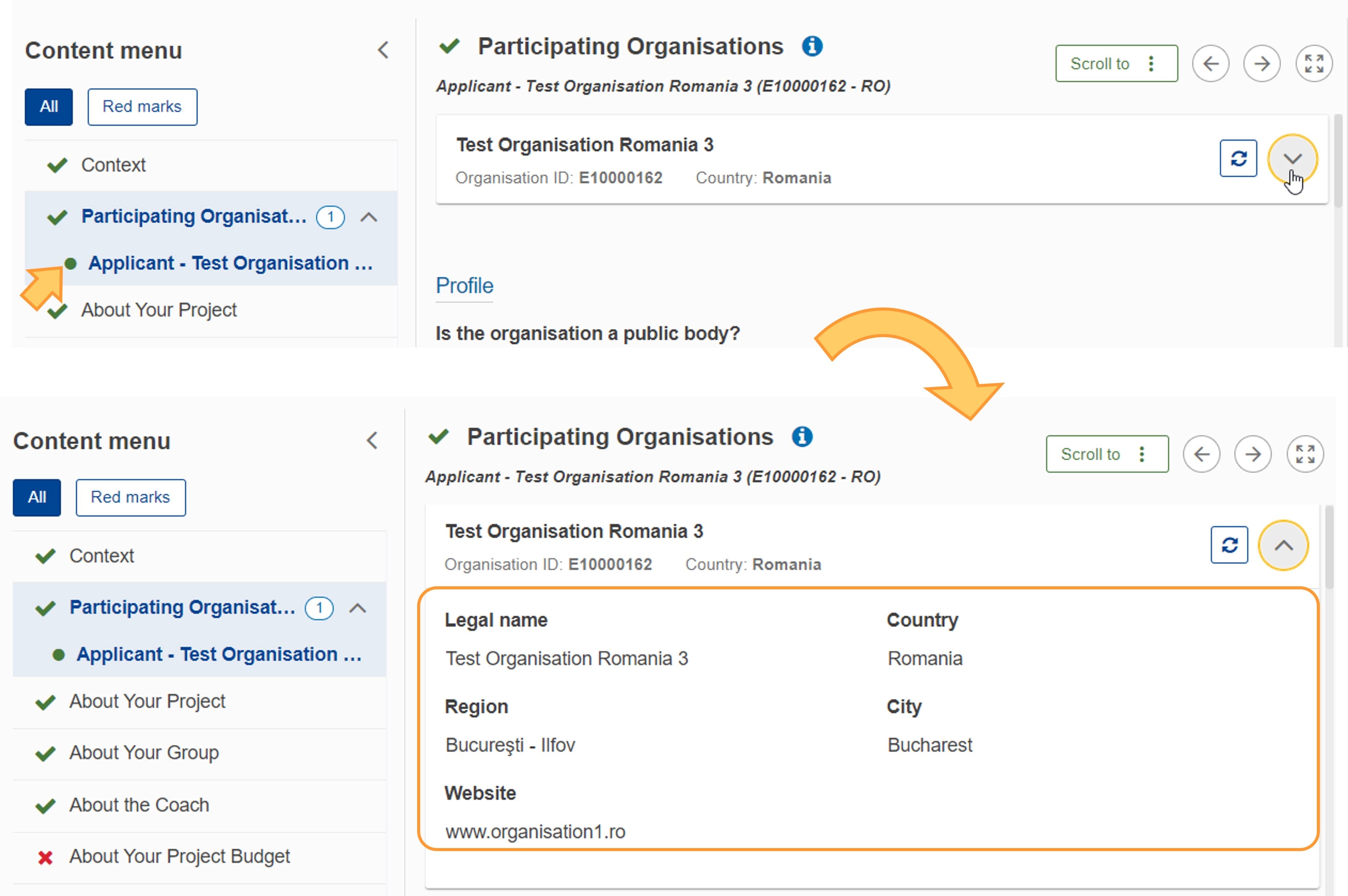
There are two ways to access the organisation details:
Editing is not available for consortium member organisations in KA131-HED and KA171-HED applications.
Click on the organisation name in the Content menu to open the organisation details screen.
At the top of the screen, click the down arrow in the available card to expand it. The organisation information displayed here is retrieved from the Organisation Registration system. To close the card click the up arrow.
Information
Should any updates be required on these organisation details, they must be made in the Organisation Registration system. See Modify Organisation in the Organisation Registration system for details.
The Organisation ID is to be provided in the Accreditation section of the form instead of the Participating organisations section. The Organisation ID is then automatically filled in the Participating Organisations screen. See the page Accreditation for more details.
Note: The organisation needs to have a valid accreditation (KA120) for the current MFF or a submitted accreditation application form (KA120) from the current call year for the applicable field before filling in the application for KA121 - Accredited projects for mobility of learners and staff in school education, vocational education and training, and adult education.
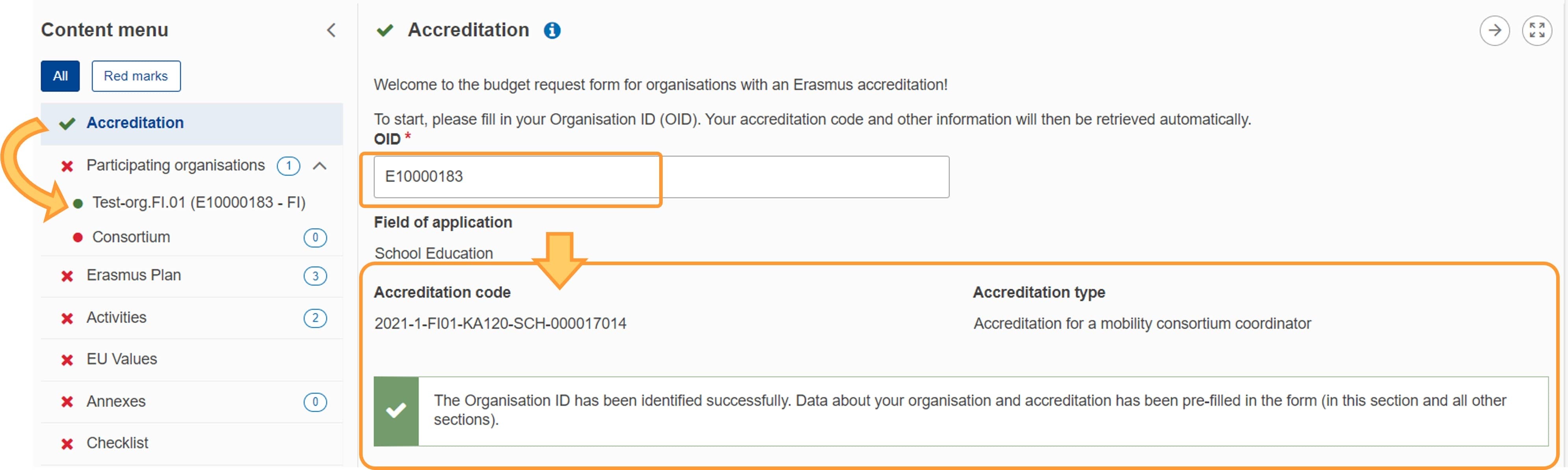
As in KA122, in projects developed under KA121 the applicant can work with supporting organisations that are or are not registered in the Organisation Registration system. The latter do not hold any Organisation ID. Please see further below for more details.
The section in the Content menu, and in the title of the page is called Applicant Organisation, not Participating Organisations.
Note: The organisation needs to have a valid accreditation or a submitted accreditation application form (KA150-YOU) before filling in the application for KA151-YOU - Accredited projects for youth mobility.
See the page Accreditation for more details.
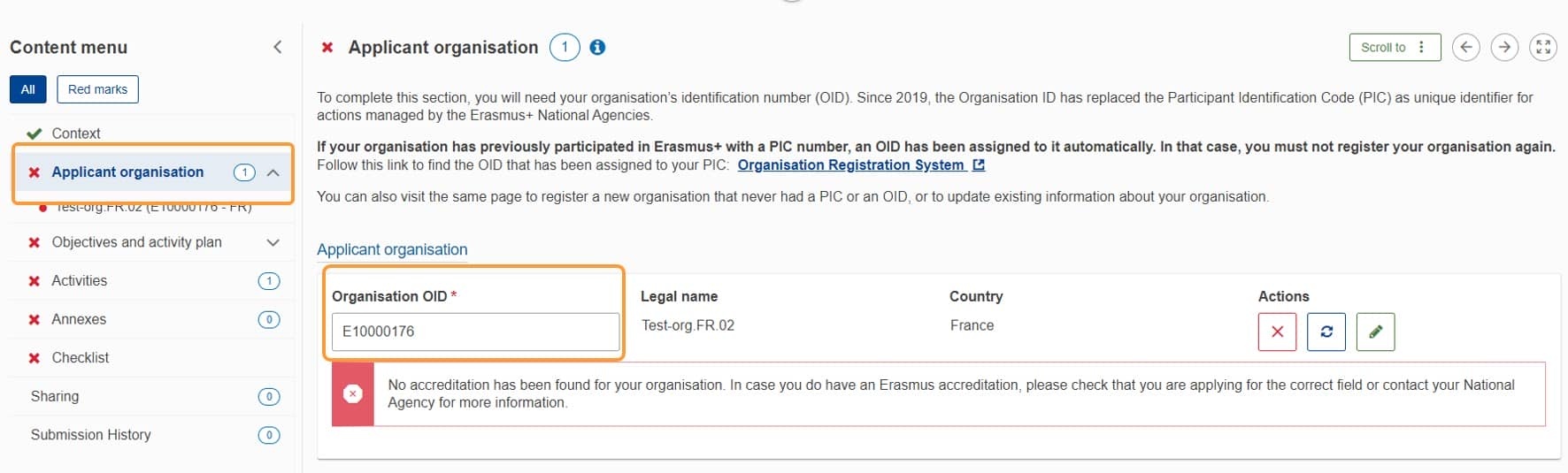
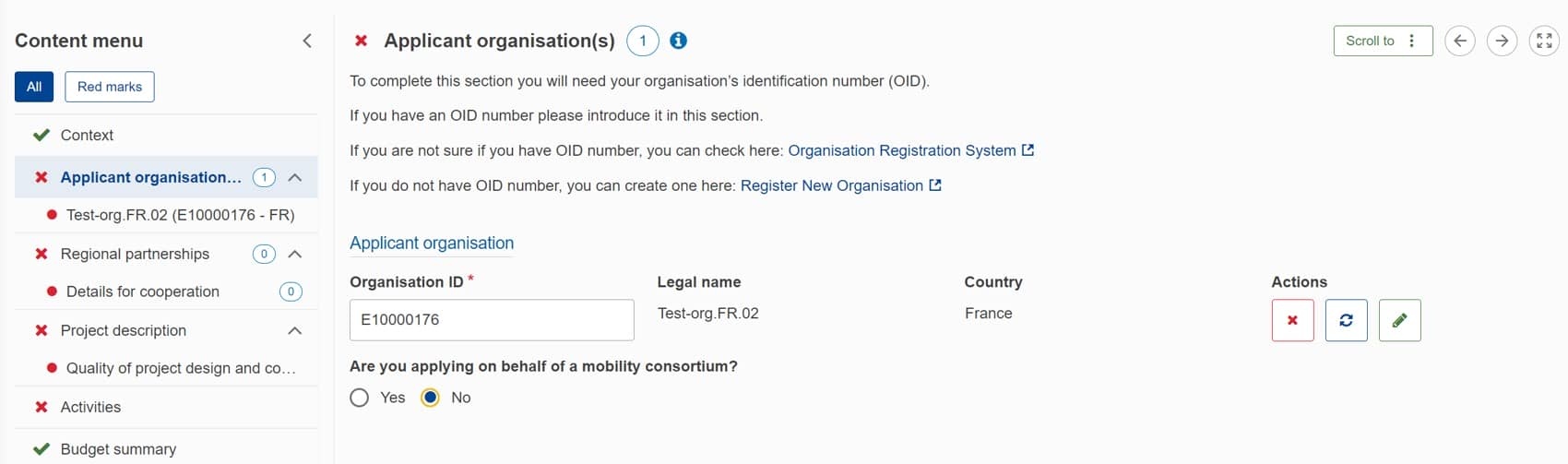
If you answer Yes, and your consortium is duly accredited or you have submitted an accreditation application for the current call year, you must select the accreditation project code from the Accreditation reference drop-down list. If you are part of more than one consortium, all the accreditation project codes will be displayed in the Accreditation reference field, and you must choose the applicable accreditation for this application. Once the relevant accreditation is selected, the consortium members are automatically displayed under Consortium members.
Tips
If you provided a Mobility Consortium Name in the Consortium Description section of your KA130-HED accreditation application (as of Call 2024), the name is also displayed here.
Use the download icon in the Actions column to download the accession form for each of the consortium members.

For all projects developed under KA122 the applicant can work with supporting organisations that are or are not registered in the Organisation Registration system. The latter do not hold any Organisation ID.
If you plan to use supporting organisations you have to select Yes for the statement My organisation plans to work with other supporting organisations that are not going to host our participants, but are going to help with the implementation of activities.
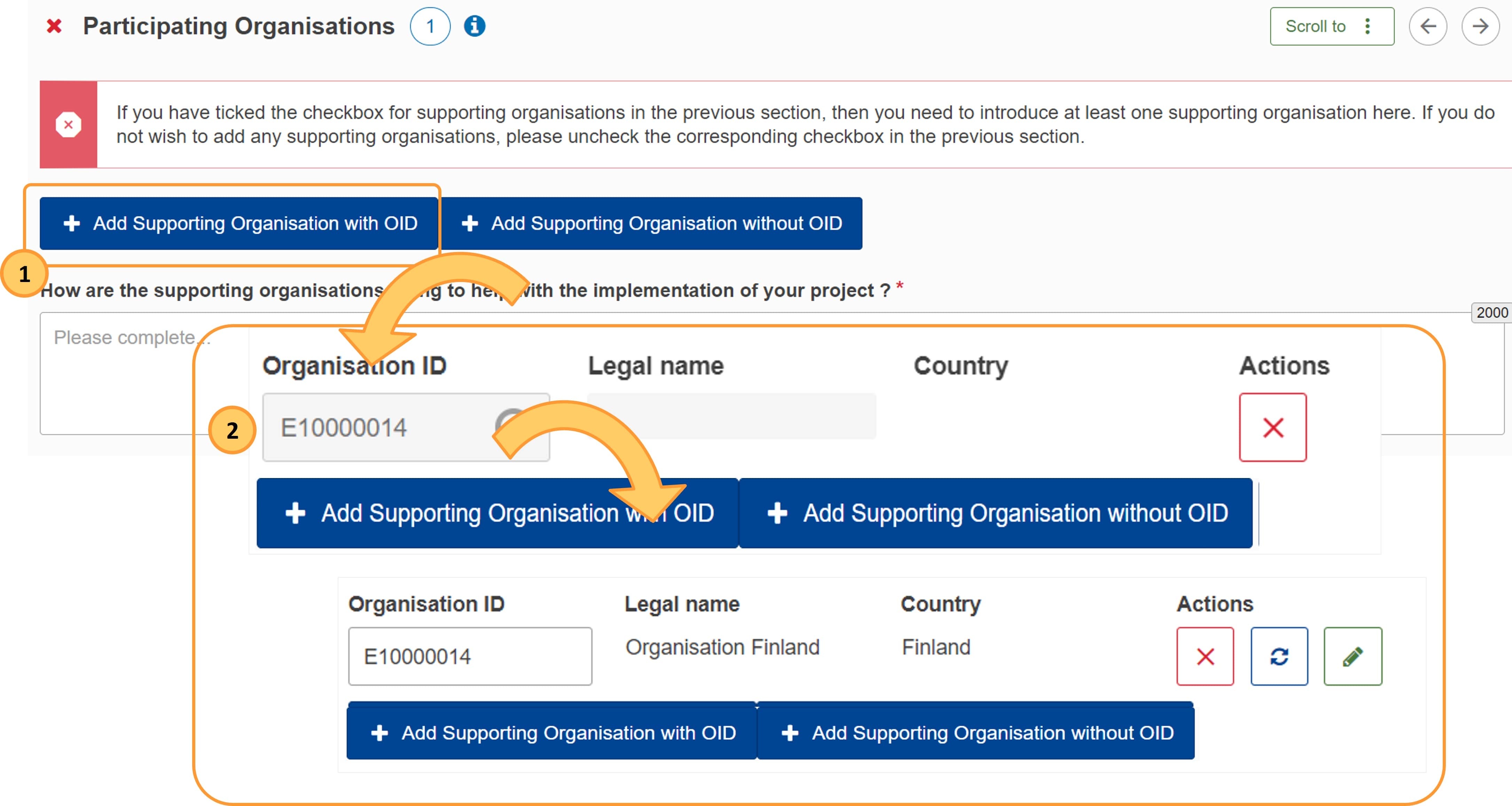
After having added supporting organisations, provide the required explanation in the field:
How are the supporting organisations going to help with the implementation of your project?
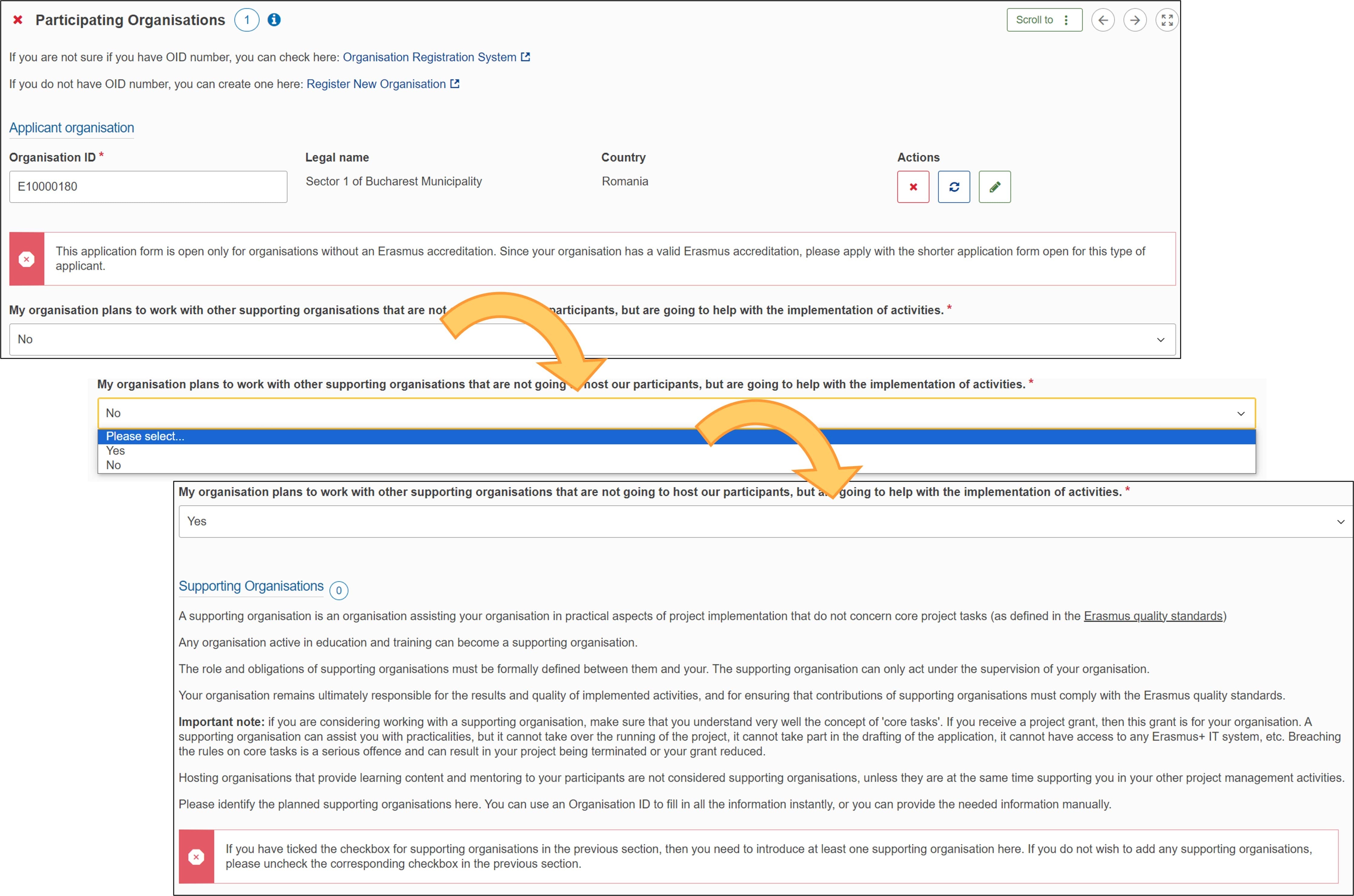
In the example below we have added a supporting organisation.

For all applications to KA152-YOU, KA153-YOU, KA154-YOU and KA155-YOU:
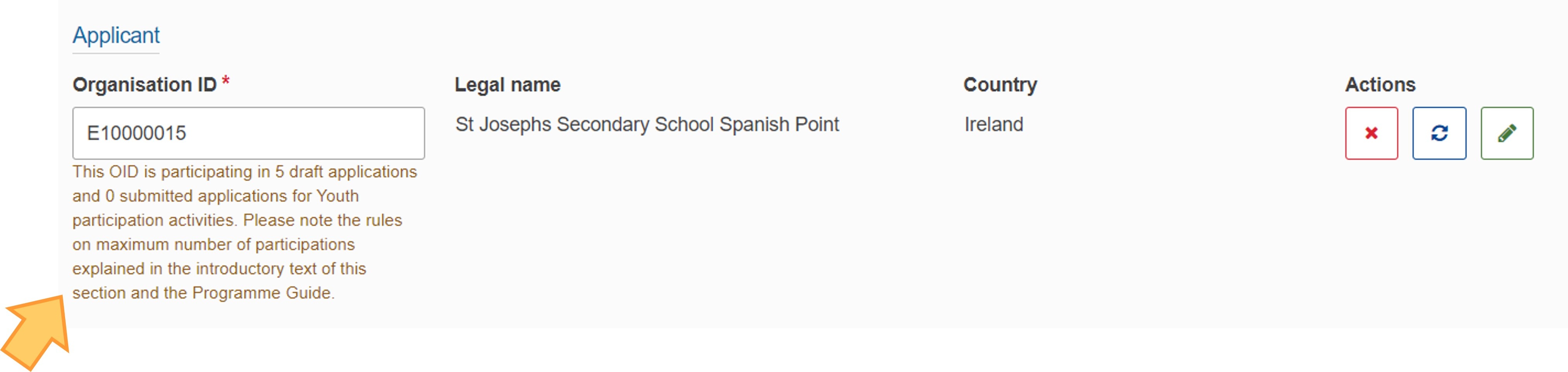
As of Call 2024 there is a limited number of applications your organisation can be involved in, as applicant or partner, for a particular action type and round. This limit may vary depending on the call year and is specified in the Erasmus+ Programme guide for each action type.
In Application forms, a check is performed on the number of draft and submitted applications your Organisation ID is listed in. Once the limit of forms is neared, the applicant organisation will receive a warning message onscreen and the authorised users of your organisation are notified by email. The notification will include a list of all applications submitted for the relevant action type and round, where the Organisation ID is listed as either applicant or partner.
Once the applicable limit of submitted applications for your action type and role in the application (applicant or partner) has been reached, all future submissions in which your organisation is involved will be blocked for the given action type and round.
Applications that have been reopened contribute to the predefined limits for each action type, as they have previously been submitted at least once.
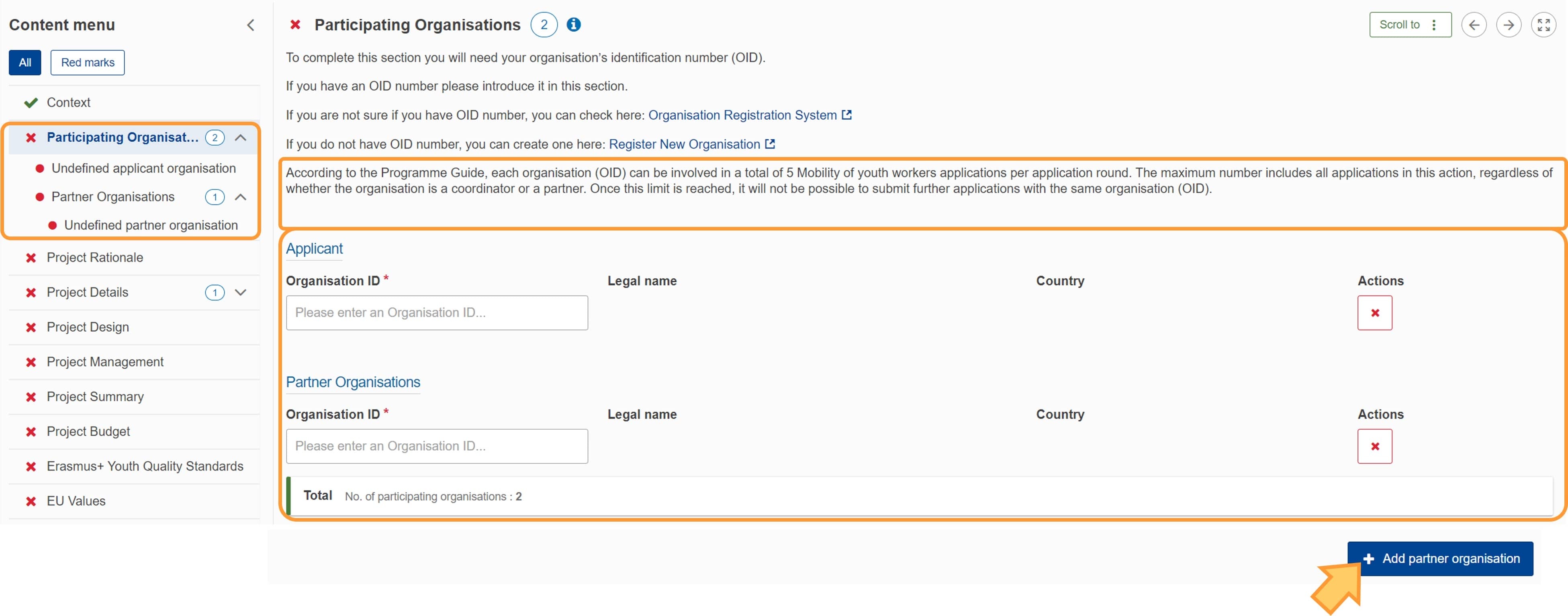
KA152, KA153 and KA154 projects require an applicant organisation and one or more partner organisations. No accreditation and no consortia are required.
Each application form includes a section to fill in the basic details for the applicant and the first partner. Add more partners as applicable by clicking the Add partner organisation button at the bottom right corner of the screen.
Here is an example of the Participating Organisations screen for a KA153-YOU - Mobility of youth workers application form:
Take Note
Only sending organisations can be applicants in KA182-SPO application forms.
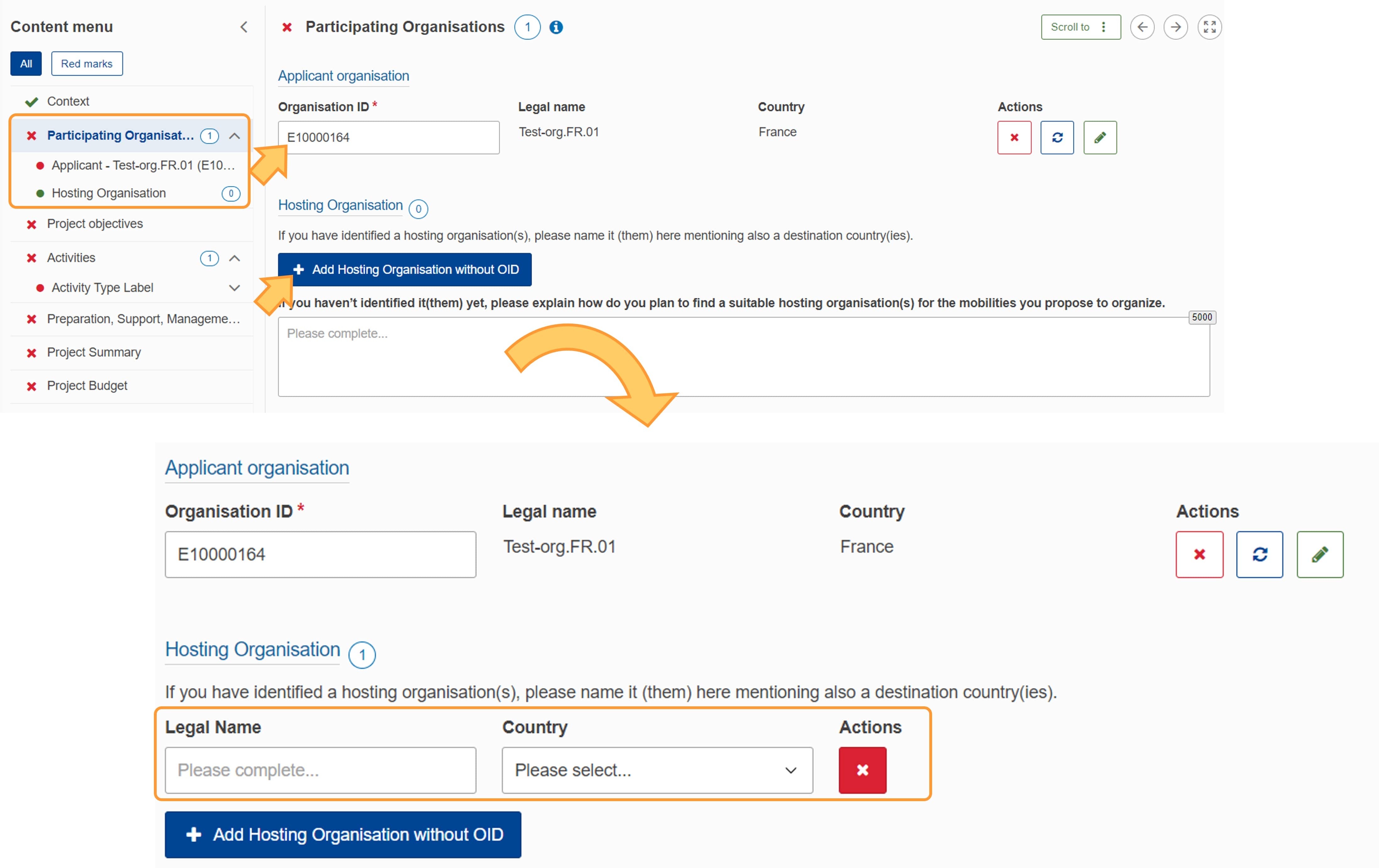
KA182-SPO projects require an applicant sending organisation. Up to 10 hosting organisations can also be added to the application form, if they are identified at this stage. Hosting organisations do not need to be registered in the Organisation Registration system.
An application form initially includes a section to fill in the basic details for the applicant.
If you have not identified any hosting organisations at this stage, fill in the available text field, explaining how you plan to find suitable hosting organisation(s) for the mobilities you wish to organise.
If you already know the prospective hosting organisations, add them by clicking the Add Hosting Organisation without OID button, then adding their Legal Name and Country in the relevant fields.
Here is an example of the Participating Organisations screen for this key action, where the Organisation ID of the applicant has been filled in. For the applicant, fill in the remaining details, as explained under Complete organisation details above.
The Hosting Organisation section in the Content menu is indicated as complete, since adding hosting organisations at this stage is optional. The applicant has clicked the Add Hosting Organisation without OID button, and the hosting organisation details must be filled in.
KA2 projects require an applicant organisation and one or more partner organisations. No accreditation and no consortia are required.
Important
For all applications to KA210 and KA220, except KA220-HED - Cooperation partnerships in higher education:
As of Call 2024 there is a limited number of applications your organisation can be involved in, as applicant or partner, for a particular action type and round. This limit may vary depending on the call year and is specified in the Erasmus+ Programme guide for each action type.
In Application forms, a check is performed on the number of draft and submitted applications your Organisation ID is listed in. Once the limit of forms is neared, the applicant organisation will receive a warning message onscreen and the authorised users of your organisation are notified by email. The notification will include a list of all applications submitted for the relevant action type and round, where the Organisation ID is listed as either applicant or partner.
Once the applicable limit of submitted applications for your action type and role in the application (applicant or partner) has been reached, all future submissions in which your organisation is involved will be blocked for the given action type and round.
Applications that have been reopened contribute to the predefined limits for each action type, as they have previously been submitted at least once.
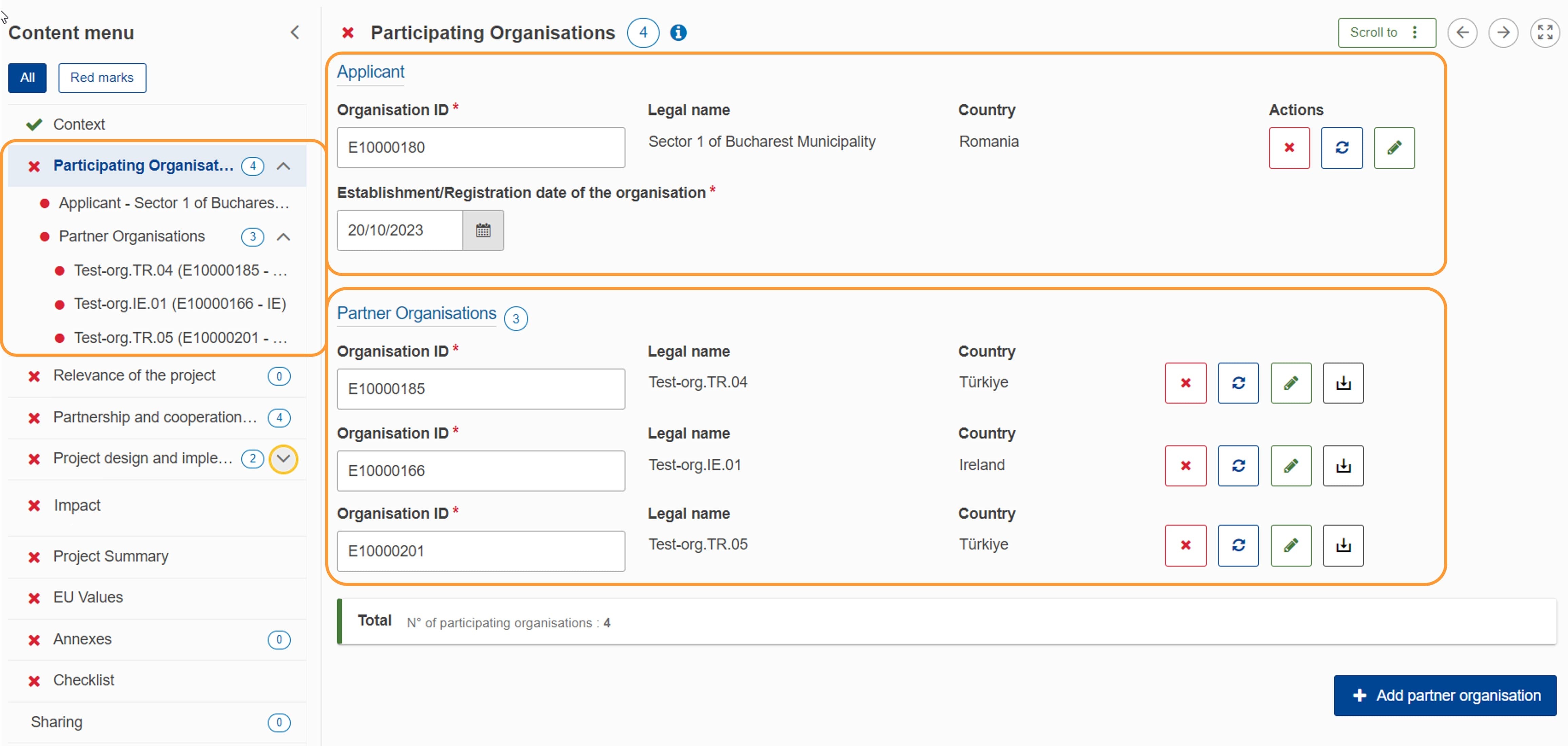
Each application form includes a section to fill in the basic details for the applicant and the first partner. Add more partners as applicable by clicking the Add partner organisation button at the bottom right corner of the screen.
Use the download icon in the Actions column to download the accession form for each of the partners, then upload the completed documents in the Annexes section of the application form.
In KA220, for the applicant you also need to specify the Establishment/Registration date of the organisation. Per the Erasmus+ Programme guide, in order to be eligible, applicant organisations must have been legally established at least 2 years before the application deadline.
Here is an example of the Participating Organisations screen for a Cooperation partnerships in school education (KA220-SCH) application form:
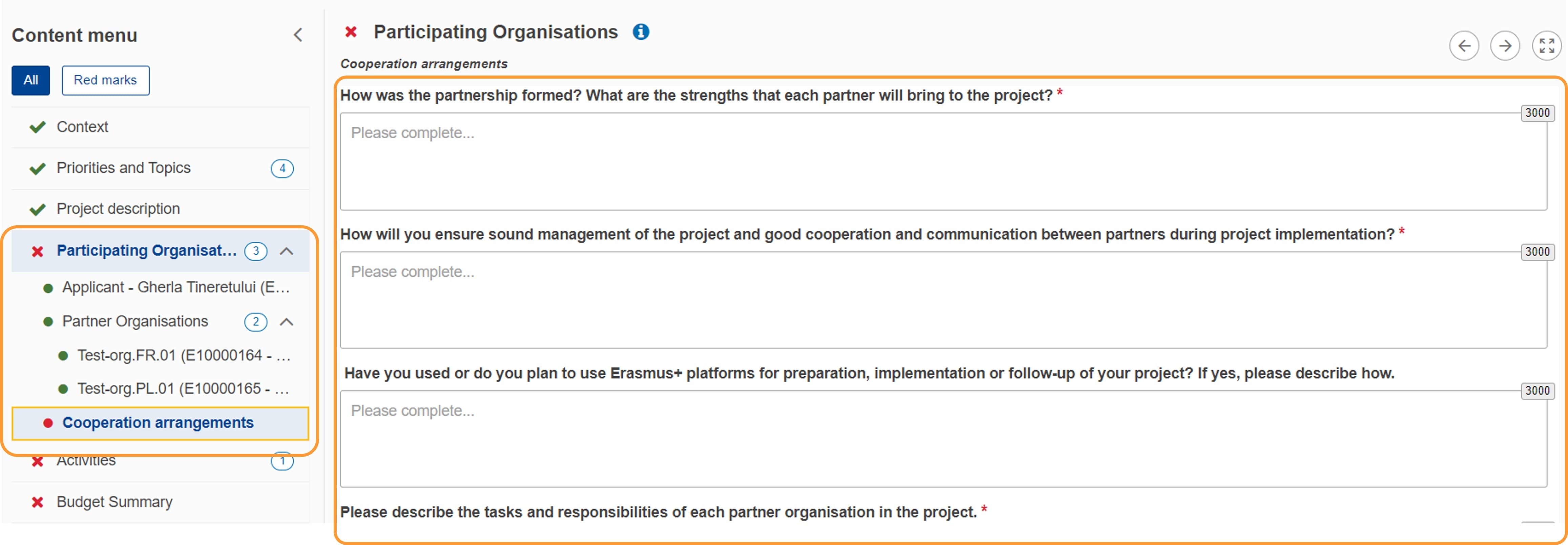
For KA210 - Small-scale partnerships applications, you must also fill in the Cooperation arrangements section. Click in the Navigation tree to open this section and fill in the information as required.
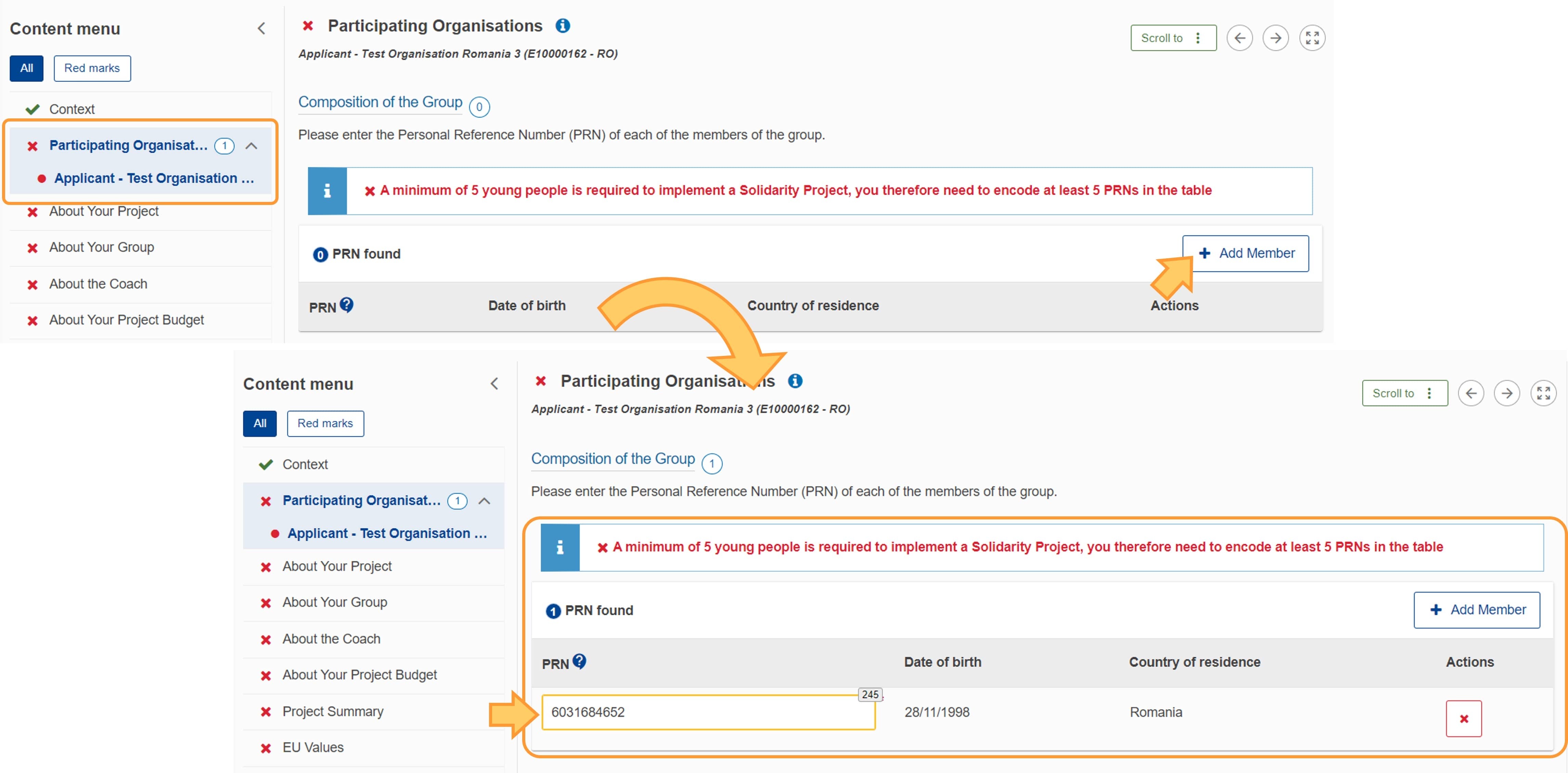
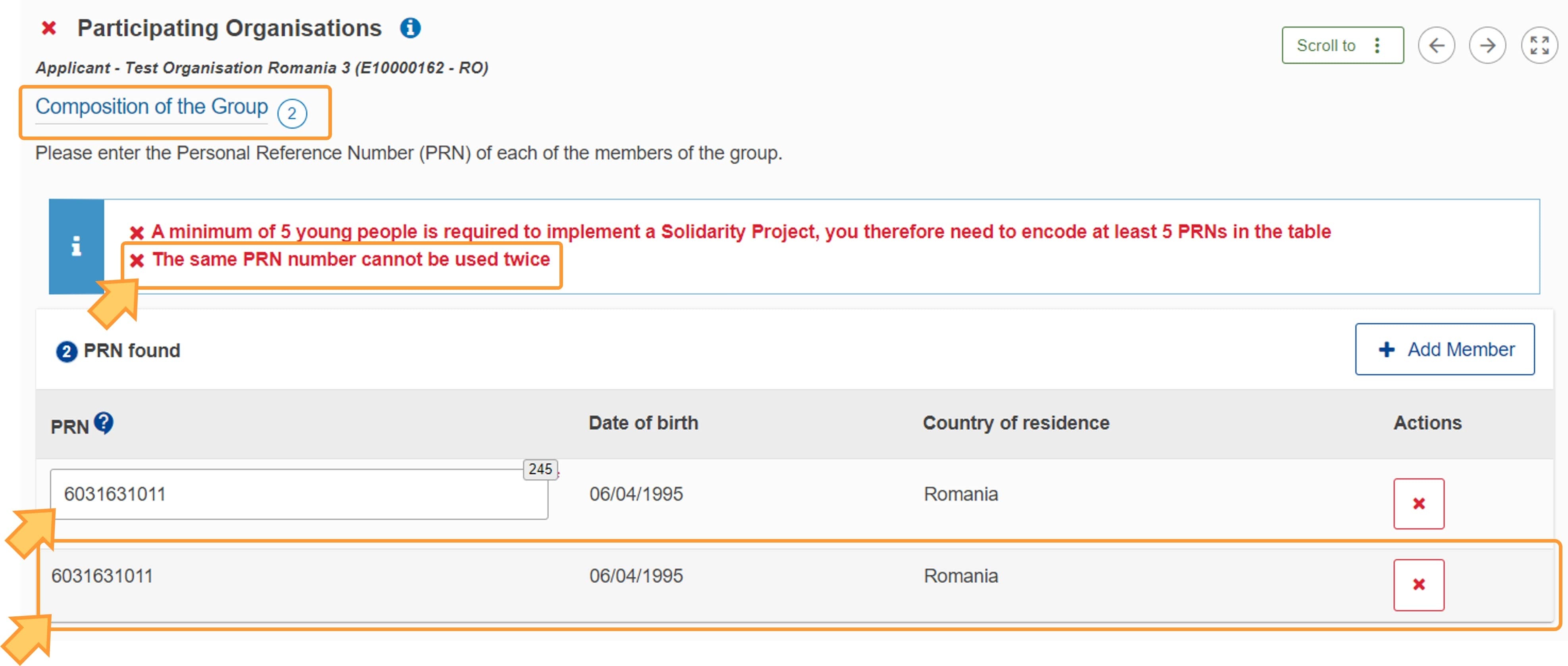
In ESC30 - Solidarity Projects application forms, the subsection Composition of the group must be filled in at the bottom of the Applicant Organisation section, to add the members of the team (at least five persons) carrying out the project.
For each person, click the Add Member button, then type the PRN (Personal Reference Number) in the available field. The Date of birth and Country of residence will be filled in automatically, if the PRN is recognised.
Take note
All group participants must have reached the age of 18 and must not be older than 30 at the start date of the project.
If you have specified the Type of organisation to be a Group of young people, you can designate one member of the group to act as Legal representative on behalf of the group. In this case, check the Legal representative is part of the group box when adding the legal representative's contact card under Applicant, then add the person's PRN in the dedicated field. This PRN will automatically be added to the member list under Composition of the group, and will be read-only - you can only change it here, but only in the PRN field within the contact card.
Take note
Do not add the legal representative's PRN in the member list. It will be counted as a duplicate, which is not allowed by the form.

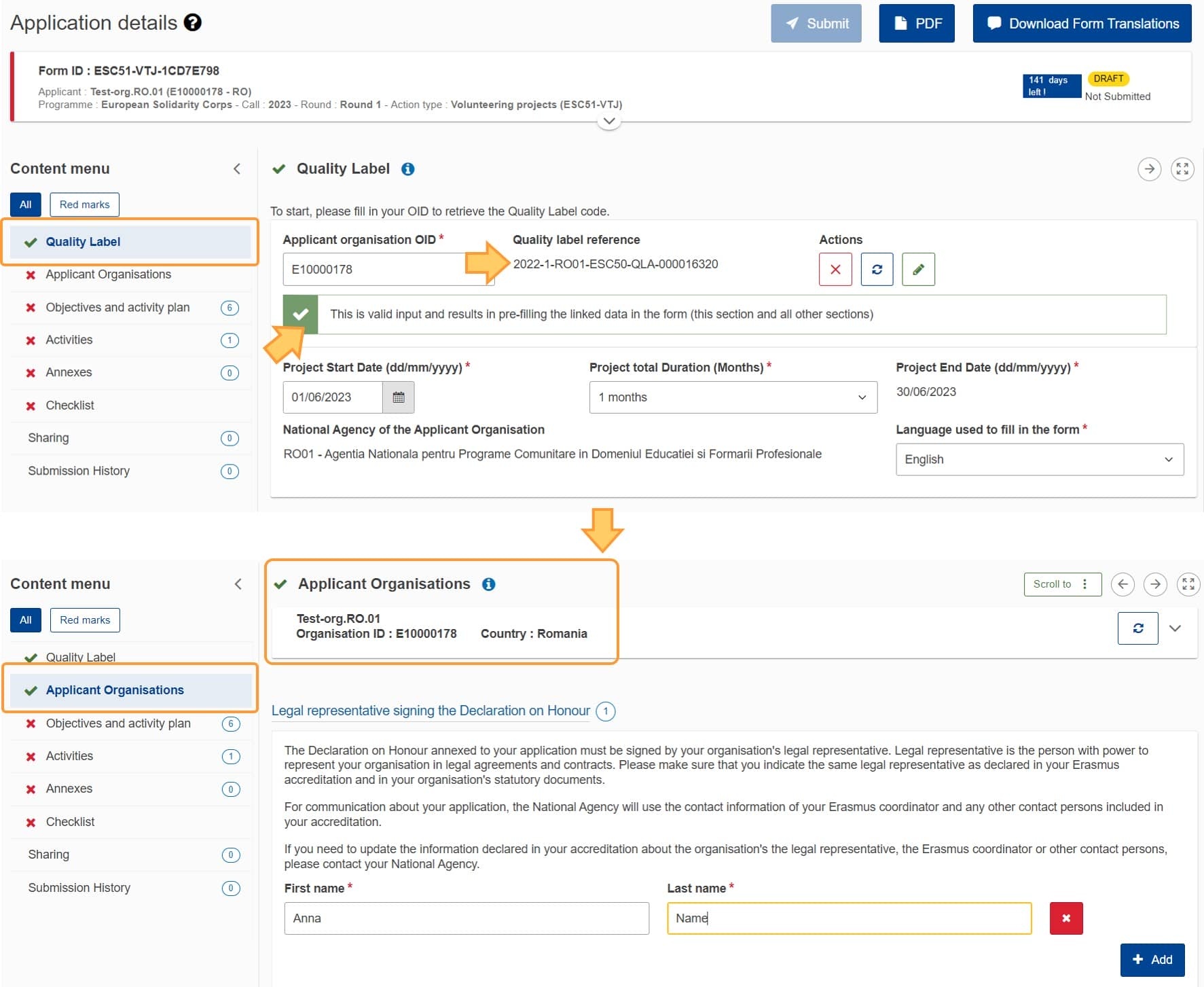
The Organisation ID has to be filled in the Quality Label section of the form. The Organisation ID is then automatically filled in the Applicant Organisation screen.
Note: The organisation needs to hold a valid Quality Label or a submitted ESC50 - Quality Label application form before filling in the ESC51 - Volunteering projects application form.
All details have been filled in for all participating organisations and each organisation is marked as complete.
Participating Organisations section is complete.
Contact
Legal Notice |Processing personal data | Cookies | Powered by Atlassian Confluence